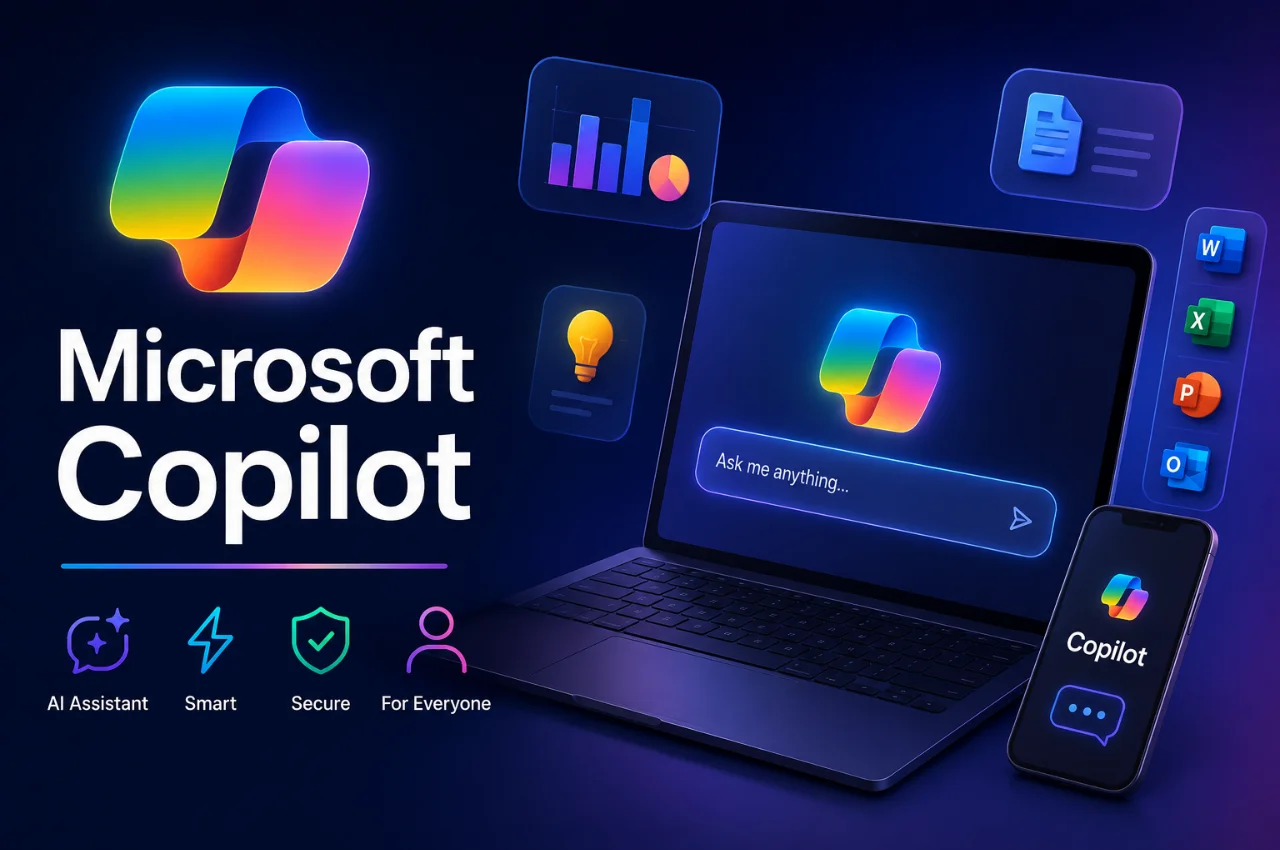
You open your Windows 11 laptop and notice a new button on the taskbar. Or you open Microsoft Word and see a Copilot icon in the ribbon. Or you search something on Bing and get an AI-generated summary at the top of the results.
All of this is Microsoft Copilot — and in 2026, it is one of the most widely available AI tools in the world, already installed on hundreds of millions of computers, smartphones, and tablets without most people even realizing it.
Yet most Windows users have never opened it. Most people who use Word, Excel, and Outlook every day have no idea that an AI assistant is sitting right there waiting to help them. And almost nobody knows that a genuinely capable version of Copilot is completely free.
This guide explains exactly what Microsoft Copilot is, how it works, where to find it, what it can do, how to use it effectively, and how it compares to ChatGPT — so you can start using it today without spending anything.
What is Microsoft Copilot?
Microsoft Copilot is an AI-powered assistant developed by Microsoft. It is designed to help you complete tasks faster, get answers to questions, create content, analyze information, and work more efficiently — through natural conversation in plain language.
Copilot is built on the same underlying technology that powers ChatGPT — specifically OpenAI’s GPT-4 and GPT-5 series of large language models, combined with Microsoft’s own additional training and integration work. This means Copilot’s core intelligence is comparable to ChatGPT in terms of language understanding and generation capability.
What makes Copilot different from ChatGPT is not the underlying AI — it is the integration. Copilot is woven directly into Microsoft’s entire product ecosystem. It is built into Windows 11, embedded in Microsoft Edge browser, connected to Bing Search, and integrated into Microsoft 365 apps including Word, Excel, PowerPoint, Outlook, and Teams. This means you do not need to switch to a separate app or website to use AI — it is right inside the tools you already use every day.
Microsoft first launched Copilot in early 2023 as Bing Chat, before rebranding and expanding it significantly throughout 2023, 2024, and into 2026. Today it is one of the most widely deployed AI assistants in the world, with over 60 percent of Fortune 500 companies actively using it and approximately 54 percent of employees with Copilot access using it daily.
How Does Microsoft Copilot Work?
Copilot works by processing your input — a question, a request, or a task described in plain language — and generating a relevant, useful response using large language models trained on vast amounts of text data.
When you type a question or request into Copilot, it goes through several processing steps. First, it reads and understands your input in context. Second, depending on the question, it searches the web using Bing to find current, accurate information. Third, it generates a response that combines its trained knowledge with the retrieved information. Finally, it presents the answer in a clear, conversational format — often with source citations so you can verify the information.
This combination of a language model and real-time web search is one of Copilot’s significant advantages. Unlike a language model that relies only on its training data — which has a cutoff date and can produce outdated or hallucinated information — Copilot can retrieve current information from the web and present it with citations. This makes it more reliable for questions about current events, recent developments, and up-to-date facts than a purely offline AI system.
When Copilot is used inside Microsoft 365 apps with a paid license, it can also access your personal files, emails, calendar, and documents — giving it context about your specific work to produce much more relevant and personalized responses.
Where Can You Access Microsoft Copilot for Free?
This is where most people are genuinely surprised — Copilot is available in multiple places completely free of charge. You do not need a Microsoft 365 subscription to use it. You do not need a paid plan. You do not even need to be signed in to get started, though signing in unlocks more features.
The web browser is the simplest way. Go to copilot.microsoft.com in any browser on any device — Windows, Mac, Android, or iPhone. You will find a clean, simple interface very similar to ChatGPT where you can start chatting immediately. No payment, no subscription required.
Microsoft Edge browser has Copilot built in on the right side panel. Open Edge, press Ctrl + Shift + Period on Windows or Command + Shift + Period on Mac to open the Copilot sidebar. It appears alongside whatever webpage you are viewing, so you can ask questions about the page you are reading without leaving it.
Windows 11 has Copilot accessible directly from the taskbar. Look for the Copilot icon in your taskbar — it looks like a small sparkle or star icon. Click it to open a Copilot panel on the right side of your screen. You can also press Alt + Spacebar for quick access, or hold Alt + Spacebar for two seconds to activate Copilot Voice for hands-free conversation.
Bing Search has Copilot integrated into search results. When you search on bing.com, you will see AI-generated answers at the top of your results page for many queries. You can also click the Chat tab on Bing to switch to a full Copilot conversation interface.
The Copilot mobile app is available free for both Android and iPhone. Search for Microsoft Copilot in the Google Play Store or Apple App Store, download it, and sign in with your Microsoft account. The mobile app includes voice input for hands-free use.
Windows 10 users can also access Copilot through the Bing website and the Copilot mobile app, even though the deep Windows integration is primarily a Windows 11 feature.
What Can You Do With the Free Version of Copilot?
The free version of Copilot in 2026 is genuinely capable and useful for a wide range of everyday tasks. Here is what you can do without paying anything.
General question answering with web search is one of Copilot’s strongest features. Ask any factual question and Copilot searches the web, synthesizes the most relevant information, and presents a clear answer with source citations. Unlike a regular search engine that returns a list of links, Copilot reads the sources and tells you the answer directly. This is particularly useful for complex questions that require synthesizing information from multiple sources.
Writing and editing assistance covers everything from emails and professional messages to essays, reports, social media content, and creative writing. Paste your draft text and ask Copilot to improve it, make it shorter, adjust the tone, fix grammatical errors, or rewrite it for a different audience. It handles all of these tasks quickly and effectively.
Image generation is included in the free version. Copilot can generate original images from text descriptions using Microsoft Designer technology powered by DALL-E. Free users get fifteen image generation boosts per day, with additional boosts available through Microsoft Rewards points. The quality of generated images is very good — suitable for presentations, social media, and creative projects.
Summarization and analysis allows you to paste long articles, documents, research papers, or any text and ask Copilot to summarize the key points, identify the main arguments, or answer specific questions about the content. This is one of the most practically useful features for students, professionals, and researchers.
Code assistance helps you write, understand, and debug programming code in multiple languages. Describe what you want your code to do and Copilot writes it. Paste existing code with a bug and ask what is wrong — it identifies and explains the issue. This is valuable even for non-developers who need simple automation scripts.
Translation between languages works for all major world languages including Hindi, Tamil, Bengali, Telugu, and other Indian languages. Paste text in any language and request a translation in natural conversational phrasing.
Voice conversation through the Copilot app on mobile and through Windows 11 allows you to speak your questions and hear responses spoken back. This is particularly useful for quick queries while your hands are occupied.
What Do You Get With a Paid Microsoft 365 Subscription?
Understanding the free versus paid distinction helps you decide whether the free version is sufficient for your needs.
Microsoft 365 Personal costs approximately 489 rupees per month in India and includes 1TB of OneDrive storage, the full Microsoft Office suite for web and mobile, and Copilot integrated directly within Word, Excel, PowerPoint, OneNote, and Outlook on the web and mobile versions. This means AI assistance directly inside your documents, spreadsheets, and presentations.
Microsoft 365 Family costs approximately 619 rupees per month and extends the same benefits to up to six people.
The key feature of paid plans that free users do not get is Copilot integration directly inside Microsoft 365 apps for web and mobile. With a paid plan, you can open Word and ask Copilot to draft a document based on your notes, open Excel and ask it to analyze your data and create charts, open PowerPoint and ask it to generate a presentation from a topic description, and use Copilot in Outlook to summarize email threads and draft replies.
For most everyday users who primarily need AI assistance for general questions, writing, and research, the free version is more than adequate. The paid plan becomes worth considering if you spend significant time working in Word, Excel, PowerPoint, or Outlook and want AI integrated directly into those workflows.
How to Use Microsoft Copilot Effectively — Practical Tips
Getting the most out of Copilot, like any AI tool, comes down to how you ask for things. Here are practical tips that will immediately improve the quality of responses you get.
Be specific and provide context. Instead of typing “write an email,” type “write a professional email to my client explaining that their project delivery will be delayed by three days due to a technical issue. Keep the tone apologetic but reassuring. The client’s name is Mr. Sharma.” The more context you provide, the more useful the response.
Ask Copilot to search for current information explicitly. If you need up-to-date information, phrase your question to make it clear you want current data — “search the web for the current price of the Samsung Galaxy S26 in India” or “what are the latest news updates about this topic.” Copilot will use Bing to retrieve current results.
Use the sidebar in Edge for page-specific assistance. When reading a long article or document in Edge, open the Copilot sidebar and ask questions specifically about the page you are reading. “Summarize this article in five bullet points” or “what is the main argument of this article” are both effective uses of this feature.
Refine responses through follow-up messages. Copilot remembers the entire conversation within a session. If the first response is not quite right, reply with adjustments — “make it shorter,” “use a more formal tone,” “add more detail about the second point.” You do not need to start over.
Use it alongside Bing Search for research. For any research task, use Copilot’s web search capability to get synthesized answers, then check the cited sources for additional depth. This is much faster than reading multiple web pages independently.
Ask Copilot to explain things at different levels. Add phrases like “explain this as if I am a complete beginner,” “explain this in simple language without technical jargon,” or “give me a technical explanation suitable for an engineering student” — Copilot adjusts its response to the requested level.
Microsoft Copilot vs ChatGPT — The Key Differences
Both Copilot and ChatGPT are AI assistants built on similar underlying technology. But they have meaningful differences that make each better for certain situations.
Copilot’s biggest advantage over ChatGPT’s free version is its real-time web search with citations on every response. Copilot uses Bing to search the web and cites its sources by default, making it more reliable for current information and factual queries where you need to verify the source.
ChatGPT’s biggest advantage over free Copilot is its broader set of capabilities in the free tier — including a larger context window for analyzing very long documents, more sophisticated multi-step reasoning in some use cases, and a wider range of integrated tools in the paid version.
Copilot is better suited for users who work primarily within the Windows and Microsoft 365 ecosystem, need current web-sourced information with citations regularly, and want AI integrated directly into their existing productivity tools without switching applications.
ChatGPT is better suited for users who need advanced writing and creative assistance, complex reasoning tasks, extensive document analysis, or access to the most cutting-edge AI reasoning capabilities.
For most ordinary users, the practical differences in everyday use are smaller than the marketing might suggest. Both are highly capable AI assistants that handle the vast majority of common tasks — writing, answering questions, summarizing, translating, and generating ideas — at a very similar level of quality.
The most practical advice is to try both. They are both free at their base level, they are both accessible from any device, and spending thirty minutes with each will tell you more about which fits your workflow than any comparison article.
Step-by-Step — Getting Started With Copilot Right Now
If you want to start using Copilot today, here is the simplest path.
Step one — Open your browser and go to copilot.microsoft.com. If you are on a Windows 11 computer, you can alternatively click the Copilot icon in your taskbar.
Step two — You can start chatting immediately without signing in. However, signing in with a free Microsoft account gives you access to conversation history, image generation, and personalization features. If you have an Outlook or Hotmail email address, that is your Microsoft account. If not, creating a free Microsoft account at account.microsoft.com takes about two minutes.
Step three — Type your first request in the message box. A good first test is to ask something you genuinely want to know — a current news topic, a factual question, or ask it to write something practical for you.
Step four — Notice the citations that appear alongside Copilot’s responses. These are the web sources it used. Click any citation to verify the information and read more detail from the original source.
Step five — Install the Copilot mobile app from the Google Play Store or Apple App Store for convenient access on your phone. The mobile app adds voice input, making it easy to ask questions hands-free.
Step six — If you use Microsoft Edge as your browser, open the Copilot sidebar with Ctrl + Shift + Period while browsing. Try asking it to summarize a news article you are reading — this alone is one of its most immediately useful everyday features.
Key Takeaway
Microsoft Copilot is one of the most accessible AI tools available in 2026 — built directly into Windows, Edge, Bing, and the Microsoft apps that hundreds of millions of people already use every day. The free version is genuinely capable, connects to the web for current information, generates images, and handles a wide range of writing, research, and productivity tasks at no cost.
If you use Windows, you already have Copilot available to you right now. Opening it and trying your first conversation takes less than thirty seconds. There is no simpler way to start experiencing what AI assistance can do in your daily life.
Frequently Asked Questions
Is Microsoft Copilot completely free to use?
Yes — Microsoft Copilot has a fully functional free version accessible at copilot.microsoft.com, within Microsoft Edge, in Bing Search, in Windows 11, and through the free mobile app. No payment or subscription is required. The paid Microsoft 365 plans add Copilot integration directly inside Word, Excel, PowerPoint, and other Office apps, along with expanded storage and the full Office suite.
Is Copilot better than ChatGPT?
Neither is strictly better — they excel in different areas. Copilot has real-time web search with source citations by default in the free version, making it stronger for current information. ChatGPT’s paid version offers more advanced reasoning capabilities and a wider toolset. For most everyday tasks, both perform at a comparable level. The best approach is to try both free versions and see which fits your workflow better.
Do I need a Microsoft account to use Copilot?
You can use Copilot without signing in at copilot.microsoft.com for basic queries. However, signing in with a free Microsoft account enables conversation history, image generation boosts, personalization, and access to all free features. Creating a free Microsoft account is simple and free.
Is Copilot safe to use? Does Microsoft read my conversations?
Microsoft applies standard privacy policies to Copilot conversations. The free consumer version of Copilot does not include enterprise-grade data protection. Do not enter sensitive personal information — such as passwords, financial account numbers, or confidential business data — into Copilot or any AI tool. Microsoft’s official privacy policy for Copilot is available at microsoft.com/privacy.
Can I use Copilot on my Android phone?
Yes — the Microsoft Copilot app is available free on both Android (Google Play Store) and iPhone (Apple App Store). It includes all the core features of the web version plus voice input for hands-free conversation. Search for Microsoft Copilot in your app store and download it.
What is the difference between Copilot and Cortana?
Cortana was Microsoft’s previous AI assistant, launched in 2014 and discontinued in 2023. Copilot is its replacement — a fundamentally more capable AI built on modern large language model technology rather than the older voice assistant approach. Copilot is significantly more capable at understanding complex requests, generating content, and handling nuanced conversations than Cortana ever was.
Final Thoughts
Microsoft Copilot represents something genuinely significant — the integration of capable AI assistance directly into the tools that most people use for work and daily life, without requiring any change of habit or additional payment.
You do not need to learn a new app or change your workflow. If you use Windows, Edge, Bing, or Microsoft 365, Copilot is already there. It is already available. It is already free.
The only thing left is to open it and try it. Start with a simple question or a piece of writing you need help with. The experience of getting genuinely useful AI assistance directly within the tools you already use every day tends to be immediately persuasive.
AI fluency is becoming a standard part of digital literacy in 2026 — and Copilot is one of the most accessible ways to develop that fluency starting right now.