It is 2 PM and your phone is already at 18 percent. You have been off the charger for only five hours. You have a long evening ahead and no charger nearby. Sound familiar?
Battery anxiety is one of the most common frustrations of modern smartphone life. And while phone batteries have improved significantly over the past few years — most flagships now carry 4,500 to 6,000 mAh — the apps, screens, and features we use have grown more power-hungry at the same rate.
The good news is that you do not need to buy a power bank or upgrade your phone to fix this problem. A combination of the right settings changes and a few smart habits can add hours to your phone’s daily battery life — and significantly extend how long your battery stays healthy over years of use.
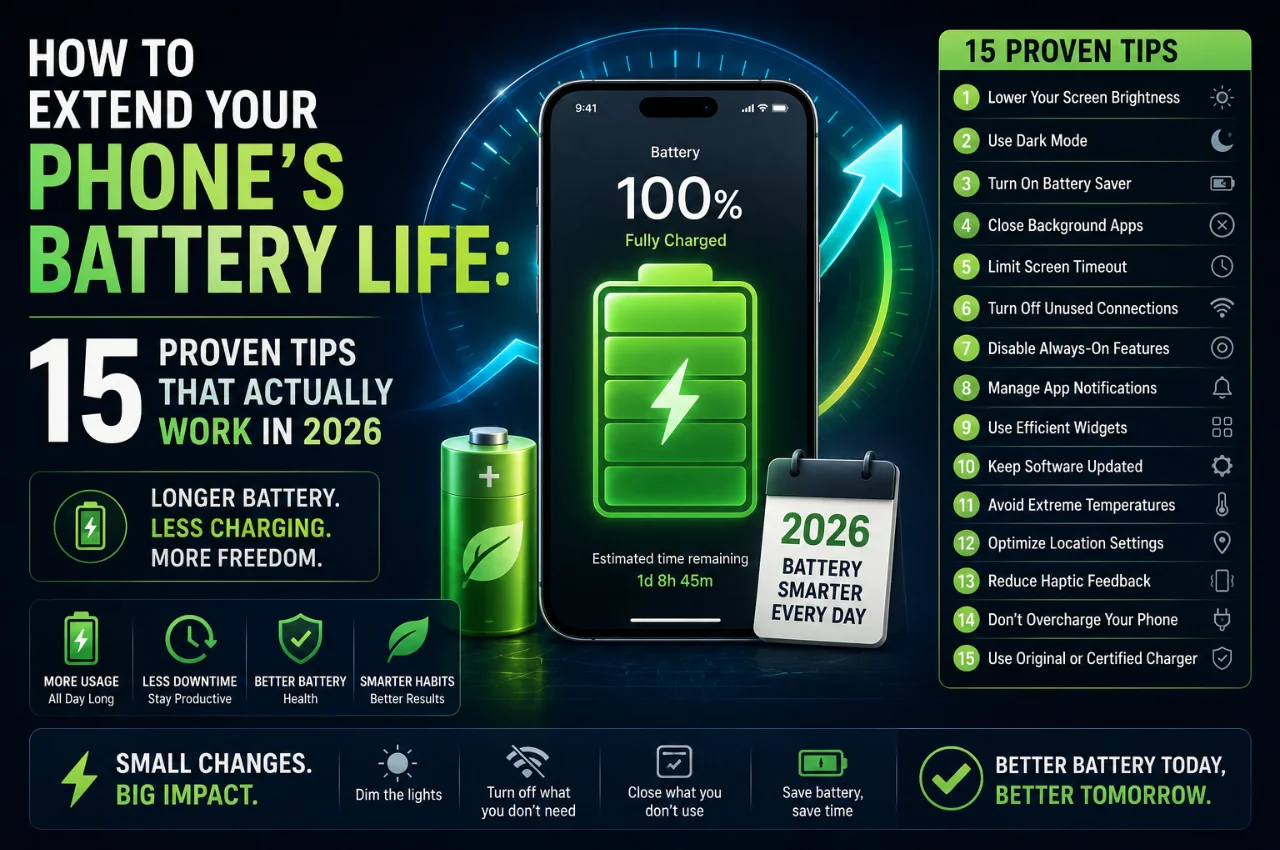
This guide gives you 15 specific, proven tips. Each one works. Each one includes exact instructions for both Android and iPhone. Start with the first few and you will notice a difference today.
First — Understanding Why Your Battery Drains So Fast
Before jumping into the tips, it helps to understand the three biggest causes of battery drain on modern smartphones. Knowing the cause makes every tip make more sense.
The display is the single biggest battery consumer on any smartphone. Your screen — especially a large, bright, high-refresh-rate AMOLED or LCD panel — consumes more power than any other component. The brighter your screen and the higher its refresh rate, the faster your battery drains.
Background app activity is the second major cause. Dozens of apps on your phone — social media, email, news, messaging — are constantly running in the background even when you are not using them. They check for updates, sync data, refresh content, and send notifications, all while silently consuming battery around the clock.
Wireless connectivity searching is the third. Your phone constantly searches for Wi-Fi signals, Bluetooth devices, GPS satellites, and cellular towers. In areas with weak signal — inside buildings, in basements, or in rural areas — your phone works much harder to maintain a connection, draining the battery significantly faster than in areas with strong signal.
Every tip in this guide targets one or more of these three root causes.
Tip 1 — Lower Your Screen Brightness Immediately
Your screen is the number one battery drain on your phone. Keeping it at maximum brightness is like running your car engine at full throttle while parked — enormous power consumption for no added benefit.
The simple fix is to lower your brightness to 50 percent or less for indoor use. You will not notice any difference in readability indoors, and the battery saving is significant.
Even better, enable Auto-Brightness, which uses your phone’s ambient light sensor to automatically adjust screen brightness based on the lighting around you. On iPhone, go to Settings, then Accessibility, then Display and Text Size, then enable Auto-Brightness. On Android, go to Settings, then Display, then enable Adaptive Brightness.
One important note: auto-brightness sometimes sets the screen brighter than necessary indoors. If that happens, manually pull down the brightness slider even after enabling auto-brightness — your phone will remember the adjustment and calibrate from there.
Tip 2 — Enable Dark Mode on Your AMOLED or OLED Screen
If your phone has an AMOLED or OLED display — which includes most Samsung Galaxy phones, all recent iPhones, and most mid-range to flagship Android phones — enabling Dark Mode is one of the most effective battery-saving changes you can make.
Here is the technical reason: AMOLED and OLED screens work by illuminating individual pixels independently. A white or bright pixel consumes power. A black pixel is literally turned off and consumes zero power. When Dark Mode displays black and dark grey backgrounds instead of white ones, a large portion of your screen is using no power at all.
Studies and real-world tests have found that Dark Mode on AMOLED screens can save 20 to 30 percent of screen-related battery consumption — which translates to meaningful hours of extra battery life per day.
On iPhone, go to Settings, then Display and Brightness, then select Dark. On Android, go to Settings, then Display, then Dark Mode or Dark Theme.
Note: Dark Mode does not provide the same battery benefit on LCD screens, because LCD backlights illuminate the entire screen regardless of what color is being displayed. If your phone has an LCD screen, Dark Mode still reduces eye strain but does not save significant battery.
Tip 3 — Reduce Your Screen Refresh Rate
High refresh rate displays — 90Hz, 120Hz, or even 144Hz — make scrolling and animations look incredibly smooth. But they also consume significantly more battery than a standard 60Hz display.
The reason is simple: a 120Hz screen refreshes 120 times per second instead of 60 times. That is double the work for the display processor, which means roughly double the power consumption for the screen component.
Many phones in 2026 allow you to manually set the refresh rate or use an adaptive mode. Adaptive mode is the best option for most users — it automatically lowers the refresh rate when high smoothness is not needed, such as when reading text or viewing static content, and increases it when scrolling or gaming.
On Samsung phones, go to Settings, then Display, then Motion Smoothness. Select Adaptive instead of High to let the phone automatically manage the refresh rate. On OnePlus and other Android phones, look for Display, then Refresh Rate, and select Auto or Adaptive. On iPhone, the ProMotion display on Pro models is adaptive by default — it automatically drops from 120Hz to as low as 1Hz when the content does not require high refresh rate, which is very efficient.
Tip 4 — Shorten Your Screen Timeout
Every time you put your phone down without locking it, the screen stays on until the timeout period expires. If your timeout is set to two minutes, that is two minutes of full-brightness screen power consumption every single time you set your phone down.
Setting your screen timeout to 30 seconds is a simple change that eliminates a surprising amount of wasted battery over the course of a day.
On iPhone, go to Settings, then Display and Brightness, then Auto-Lock, then select 30 Seconds. On Android, go to Settings, then Display, then Screen Timeout or Sleep, then select 30 Seconds.
Tip 5 — Turn Off Background App Refresh
This is one of the most impactful battery-saving changes most people never make. Background App Refresh allows apps to check for new content, sync data, and update information even when you are not using them. Social media apps, news apps, email clients, and many others are constantly doing this silently in the background — every few minutes, around the clock.
Turning this off for apps that do not genuinely need it means those apps only update when you actively open them. You will not notice any difference in how the apps work, but you will notice a difference in your battery.
On iPhone, go to Settings, then General, then Background App Refresh. You can turn it off entirely or select individual apps to disable it for. Turning it off for social media apps, news apps, and shopping apps while keeping it on for messaging apps is a balanced approach.
On Android, the process varies slightly by brand. Generally, go to Settings, then Apps. Select the app you want to restrict. Go to Battery. Select Restricted or Optimized to limit its background activity.
Tip 6 — Disable Location Access for Apps That Do Not Need It
GPS and location services are among the most power-hungry features on your phone. Every app that has continuous access to your location is regularly requesting GPS data in the background — and GPS uses significant battery.
Go through your location permissions and set every app to Only While Using rather than Always. The only apps that genuinely need Always access to your location are navigation apps like Google Maps when you are actively using them for directions.
On iPhone, go to Settings, then Privacy and Security, then Location Services. Review every app and change any set to Always to While Using the App unless you have a specific reason to keep it on Always. On Android, go to Settings, then Location, then App Permissions. Review and restrict accordingly.
This single change can make a noticeable difference if you have several apps with continuous location access — which most people do without realizing it.
Tip 7 — Turn Off Connectivity Features You Are Not Using
Bluetooth, Wi-Fi, NFC, and mobile data all consume battery when active — even when not in active use, because they continuously scan for devices and networks to connect to.
The practical approach is not to disable all of them permanently, but to disable the ones you are genuinely not using at any given moment.
If you are at home connected to Wi-Fi, turn off mobile data — your phone will not keep switching between the two. If you are not using Bluetooth headphones or any Bluetooth device, turn Bluetooth off. If you are in an area with very weak cellular signal, turn on Airplane Mode — your phone uses enormous power trying to maintain a weak signal, and Airplane Mode stops that completely. You can still use Wi-Fi in Airplane Mode on both Android and iPhone by enabling Wi-Fi after turning Airplane Mode on.
On iPhone, swipe down from the top right corner to access Control Center and toggle these features there. On Android, swipe down from the top of the screen to access Quick Settings and toggle them from there.
Tip 8 — Enable Battery Saver or Low Power Mode
Both Android and iPhone have a dedicated battery saving mode that restricts background activity, reduces visual effects, limits performance slightly, and applies several optimizations automatically — all with one tap.
On iPhone, this is called Low Power Mode. Go to Settings, then Battery, then enable Low Power Mode. You can also ask Siri to turn on Low Power Mode or add it to your Control Center for instant access. Low Power Mode automatically turns off when your battery charges above 80 percent.
On Android, this is called Battery Saver or Power Saving Mode. Go to Settings, then Battery, then Battery Saver. You can enable it manually or set it to turn on automatically when your battery reaches a certain percentage — 20 or 30 percent is a good threshold.
Many Android phones also have an Ultra Power Saving or Extreme Battery Saver mode that limits you to a small set of essential apps and can keep your phone functional for an extremely long time on a small remaining charge — useful in genuine emergencies.
The tip here is to not wait until your battery is at 5 percent to enable these modes. Turning on Battery Saver at 30 or 40 percent and keeping it on for the rest of the day significantly extends how long that remaining charge lasts.
Tip 9 — Identify and Restrict Apps That Drain the Most Battery
Both Android and iPhone show you exactly which apps are consuming the most battery. Checking this is one of the most actionable things you can do — because the culprit is often an app you would not expect.
On iPhone, go to Settings, then Battery. You will see a list of apps sorted by battery consumption over the last 24 hours and the last 10 days. Look for apps consuming a disproportionately high percentage — especially any that show high background activity. Social media apps, streaming apps, and poorly optimized apps are common offenders.
On Android, go to Settings, then Battery, then Battery Usage. You will see a similar breakdown. As of early 2026, Android now shows warning labels on apps that excessively use battery in the background — making it even easier to identify and restrict problem apps.
Once you identify high-drain apps, the options are to restrict their background activity as described in Tip 5, reduce how often you use them, delete them if you do not need them, or switch to using them through your mobile browser instead of the dedicated app — browser versions of apps typically use significantly less battery than their dedicated apps.
Tip 10 — Stop Charging to 100 Percent Every Time
This tip is about long-term battery health rather than today’s immediate usage — but it is arguably the most important tip in the entire guide for anyone who wants their battery to stay healthy for years.
Modern smartphones use lithium-ion batteries. Lithium-ion chemistry is most stable and least stressed when the charge level is between 20 and 80 percent. Keeping the battery consistently at these extremes — fully charged at 100 percent or fully depleted at 0 percent — causes chemical stress inside the battery that permanently degrades its capacity over time.
Each full charge cycle from 0 to 100 percent counts as one cycle. Most phone batteries are rated for 500 to 1,000 cycles before significant degradation. But if you keep your charge between 20 and 80 percent, partial cycles count as partial cycles — meaning you get dramatically more total usage before the battery noticeably degrades. Research suggests this charging practice can extend a battery’s lifespan from the standard 500 cycles to over 1,500 cycles — the difference between replacing your battery after two years versus still having a healthy battery after five.
Both iPhone and Android have features to help you do this automatically. On iPhone, go to Settings, then Battery, then Battery Health and Charging, then enable Optimized Battery Charging. This feature uses machine learning to learn your daily routine and holds the charge at 80 percent, only topping up to 100 percent shortly before you typically wake up. On Samsung phones, go to Settings, then Battery, then Battery Protection. Other Android brands have similar features under various names — look for Protect Battery, Adaptive Charging, or Battery Care in your battery settings.
Tip 11 — Never Let Your Battery Hit Zero
Fully draining your battery to 0 percent repeatedly is one of the fastest ways to permanently damage battery capacity. Lithium-ion batteries experience significant chemical stress at very low charge levels, and frequent deep discharge accelerates the degradation process.
Try to plug your phone in before it drops below 20 percent. If your phone dies and needs to be charged from zero occasionally that is fine — but making it a regular habit significantly shortens your battery’s long-term lifespan.
Tip 12 — Keep Your Phone Cool — Heat is Battery’s Worst Enemy
Heat is the number one killer of lithium-ion batteries. Exposure to high temperatures permanently accelerates battery degradation — it does not matter whether the heat comes from direct sunlight, a hot car interior, fast charging, or heavy gaming.
Never leave your phone on a car dashboard in direct sunlight. The interior of a parked car in Indian summer can reach temperatures well above 60 degrees Celsius, which can cause permanent damage to your battery’s electrolyte fluid in a matter of minutes.
Remove your phone case when charging, especially if you are using fast charging — cases trap heat and significantly raise the phone’s temperature during the charging process. If your phone feels uncomfortably hot to the touch while charging or during heavy use, set it down on a flat surface, remove the case, and let it cool before continuing.
Avoid gaming, streaming video, or video calling while charging simultaneously — doing so generates heat from both the charging process and the heavy processor use at the same time, creating the worst possible thermal conditions for your battery.
Tip 13 — Update Your Apps and Operating System Regularly
Outdated apps and operating system versions are a surprisingly common cause of excessive battery drain. Developers release updates that include battery optimizations, bug fixes, and performance improvements — including fixes for specific bugs that were causing abnormal battery consumption.
An app running an old version with a known battery bug can drain significantly more power than the updated version. Keeping your apps updated ensures you have the most efficient versions of each app on your phone.
On iPhone, go to the App Store, then your profile icon, then scroll down to see available updates. Enable automatic updates in Settings, then App Store, then turn on App Updates. For iOS updates, go to Settings, then General, then Software Update. On Android, open the Play Store, go to your profile icon, then Manage Apps and Device, then Update All. Enable automatic updates in Play Store Settings.
Tip 14 — Use Wi-Fi Instead of Mobile Data Whenever Possible
Using mobile data — especially 5G — consumes significantly more battery than using Wi-Fi for the same tasks. The reason is that Wi-Fi radio uses less power than cellular radio, and 5G in particular requires significant processing power and radio energy to maintain its high-speed connection.
Whenever you are at home, at work, or anywhere with a trusted Wi-Fi network, keep Wi-Fi enabled and mobile data as your secondary fallback. Your phone automatically uses Wi-Fi when available. This can make a measurable difference in daily battery life, especially for users who stream a lot of video or use data-heavy apps throughout the day.
If you are in an area with poor 5G coverage, consider switching your network mode to 4G LTE rather than 5G. On iPhone, go to Settings, then Cellular, then Cellular Data Options, then Voice and Data, then select LTE. On Android, go to Settings, then Network, then SIM card settings, then Preferred network type, and select 4G. In areas where 5G signal is weak, your phone wastes significant power searching for and maintaining a marginal 5G connection — 4G LTE is more battery-efficient in those situations.
Tip 15 — Check and Replace Your Battery If Its Health Has Degraded
All lithium-ion batteries lose capacity over time. This is normal and unavoidable. After 18 to 24 months of regular use, most phone batteries are noticeably less capable than when new. After two to three years, significant degradation is common.
Checking your battery health takes 30 seconds and gives you an important piece of information about your phone’s battery condition.
On iPhone, go to Settings, then Battery, then Battery Health and Charging. You will see a Maximum Capacity percentage. A new battery is at 100 percent. When it drops below 80 percent, you will notice a significant reduction in how long your phone lasts on a charge — and Apple may enable performance throttling to prevent unexpected shutdowns. Below 80 percent is the generally accepted threshold at which battery replacement becomes worthwhile.
On Samsung phones, go to Settings, then Battery, then Battery Information or Device Care, then Battery. Some Samsung models show a health percentage directly. Other Android phones vary by manufacturer — some show health percentage in settings while others require third-party apps like AccuBattery to assess battery health.
If your battery health is below 80 percent and your phone was otherwise working well before the battery degraded, replacing the battery is significantly cheaper than buying a new phone — and it will feel like getting a brand new device. Authorized service centers for all major brands offer battery replacement at a fraction of the cost of a new phone.
Quick Summary — The 15 Tips at a Glance
Tip 1 — Lower screen brightness to 50 percent or less indoors.
Tip 2 — Enable Dark Mode if you have an AMOLED or OLED display.
Tip 3 — Set your display refresh rate to Adaptive instead of maximum.
Tip 4 — Set screen timeout to 30 seconds.
Tip 5 — Turn off Background App Refresh for social media and non-essential apps.
Tip 6 — Change all app location permissions to Only While Using.
Tip 7 — Disable Bluetooth, NFC, and mobile data when not actively needed.
Tip 8 — Enable Battery Saver or Low Power Mode before your battery gets critical.
Tip 9 — Check your battery usage list and restrict the highest-drain apps.
Tip 10 — Use Optimized or Adaptive Charging to keep battery between 20 and 80 percent.
Tip 11 — Plug in before reaching 20 percent — never let it die to zero regularly.
Tip 12 — Keep your phone out of direct sunlight and heat — especially while charging.
Tip 13 — Keep your apps and operating system updated.
Tip 14 — Use Wi-Fi instead of mobile data whenever possible and switch to 4G in poor 5G coverage.
Tip 15 — Check your battery health and replace if below 80 percent.
Which Tips Should You Try First?
If you want the biggest immediate impact with the least effort, start with these five tips today in this order.
First, lower your screen brightness — takes five seconds and immediately reduces your biggest power consumer. Second, enable Dark Mode if you have an AMOLED screen — one toggle in display settings. Third, set screen timeout to 30 seconds — one change in display settings. Fourth, turn off Background App Refresh for social media apps — two minutes in app settings. Fifth, enable Optimized Battery Charging — protects your battery health automatically from this point forward.
These five changes alone can add one to three hours of battery life per day for most users and will begin protecting your battery’s long-term health immediately.
Frequently Asked Questions
Does Dark Mode actually save battery?
Yes — but only if your phone has an AMOLED or OLED display. On AMOLED and OLED screens, black pixels are switched off completely and consume zero power. Dark Mode can save 20 to 30 percent of screen-related battery consumption on these screens. On LCD displays, Dark Mode does not provide a significant battery saving because the backlight illuminates the entire screen regardless of what color is shown.
Is it bad to charge my phone overnight?
Regular overnight charging to 100 percent creates sustained chemical stress on lithium-ion batteries that accelerates degradation over time. The best approach is to enable Optimized Battery Charging (iPhone) or Adaptive Charging (Android), which holds the charge at 80 percent and only completes the charge before you wake up — eliminating the time the battery spends sitting at a stressful 100 percent.
Does closing apps manually save battery?
Counterintuitively, no — and in fact it can waste battery. Modern Android and iOS are designed to manage background apps efficiently. When you close an app and reopen it, your phone uses processor power to reload it from scratch, which can use more battery than if the app had remained in a suspended state in memory. The exception is apps that you can confirm are actively running in the background — for those, restricting background activity in settings is far more effective than manually closing and reopening them.
Why does my phone lose battery even when not in use?
Passive battery drain while the phone is idle comes primarily from background app activity, push notifications, location services running continuously, and connectivity features actively searching for signals. Applying the tips in this guide — particularly restricting background app refresh, limiting location access, and disabling unused connectivity — will significantly reduce passive drain.
How often should I check my battery health?
Checking once every three to four months is a reasonable habit. For most users, battery health begins to noticeably decline after 18 to 24 months of regular daily charging. If you notice your phone’s battery life feels significantly shorter than it used to be, check the battery health — if it is below 80 percent, battery replacement will restore most of the original performance.
Can extreme cold also damage my battery?
Yes — both extreme heat and extreme cold are damaging to lithium-ion batteries. Cold temperatures reduce battery performance temporarily and can cause inaccurate battery percentage readings. Extreme cold over extended periods can cause permanent capacity reduction. In Indian winters this is rarely a concern, but avoid leaving your phone outside in very cold temperatures for extended periods.
Final Thoughts
Your phone’s battery does not have to be a constant source of anxiety. The tips in this guide are practical, proven, and take very little time to implement — most of them are one-time settings changes that work automatically from that point forward.
Start with the highest-impact changes today — lower brightness, enable Dark Mode, set a short screen timeout, restrict background app refresh. Then gradually work through the remaining tips over the next few days. The cumulative effect of implementing all 15 tips is significant — most users report adding several hours to their daily battery life.
And remember: the long-term tips — keeping your charge between 20 and 80 percent, avoiding heat, enabling optimized charging — are just as important as the immediate fixes. A phone battery that is properly cared for stays healthy far longer, saving you the cost of a replacement battery or an early phone upgrade.
Take five minutes today to apply the first few tips. Your phone will thank you by making it through the day.