You just got a new phone and it’s already telling you that your storage is almost full. Or maybe you accidentally deleted an important photo and wish you had a backup somewhere. Or perhaps you started a document on your laptop and need to access it on your phone while commuting.
All of these problems have one solution: cloud storage.
Cloud storage is one of the most useful technologies built into modern life — and yet most people only vaguely understand what it is, how it works, and which service is actually right for them. This guide covers everything from the basics of cloud storage to a detailed, honest comparison of the three biggest services in the world — Google Drive, iCloud, and Microsoft OneDrive — so you can make an informed choice and stop paying for something that doesn’t fit your needs.
What is Cloud Storage?

Cloud storage is a technology that lets you store your files — photos, videos, documents, contacts, notes, and more — on remote servers owned by a company, rather than only on your phone or computer.
Think of it like a locker that exists on the internet. You put your files into this locker, and you can access them from any device — your phone, your laptop, a tablet, or even a friend’s computer — as long as you have an internet connection and your account credentials.
The word “cloud” simply refers to servers located in massive data centers around the world. When you upload a photo to Google Drive or iCloud, that photo travels over the internet and gets stored on one of these servers — backed up, encrypted, and accessible whenever you need it.
Cloud storage solves several real problems that every smartphone and computer user faces. Physical devices fail — hard drives crash, phones get stolen, laptops break. If your only copy of important files is on your device, those files are gone forever when something goes wrong. Cloud storage ensures a backup always exists independently of your hardware. It also enables seamless access across devices, effortless sharing with others, and automatic backup without any manual effort on your part.
How Does Cloud Storage Actually Work?
When you enable cloud storage on your phone or computer, the service installs a small background application that monitors specific folders or data types — photos, documents, contacts, or your entire file system depending on the service.
Whenever you create, edit, or delete a file in one of these monitored locations, the background app automatically syncs the change to the company’s servers over your internet connection. This sync happens quietly in the background — you don’t need to do anything manually. Within seconds, the updated file appears on every other device connected to the same account.
The files are stored on company servers using encryption — meaning they are scrambled into unreadable code so that even if someone intercepts the data, they cannot read it. When you access your files, the encryption is reversed using your account credentials.
This is why cloud storage is fundamentally more reliable than keeping files only on your local device. A server run by Google, Apple, or Microsoft is backed up dozens of times across multiple physical locations. The chance of permanent data loss on these systems is extraordinarily low compared to a single consumer hard drive or phone.
The Three Major Cloud Storage Services
In 2026, three services dominate the cloud storage market for individual users: Google Drive, Apple iCloud, and Microsoft OneDrive. Each is backed by one of the world’s largest technology companies, each has hundreds of millions of users, and each is built around a different philosophy and ecosystem.
Understanding those differences is the key to choosing correctly.
Google Drive — The Best All-Around Option for Most People
Google Drive is Google’s cloud storage platform, launched in 2012 and now deeply integrated into the entire Google ecosystem — Gmail, Google Docs, Sheets, Slides, Google Photos, Google Meet, and Android devices.
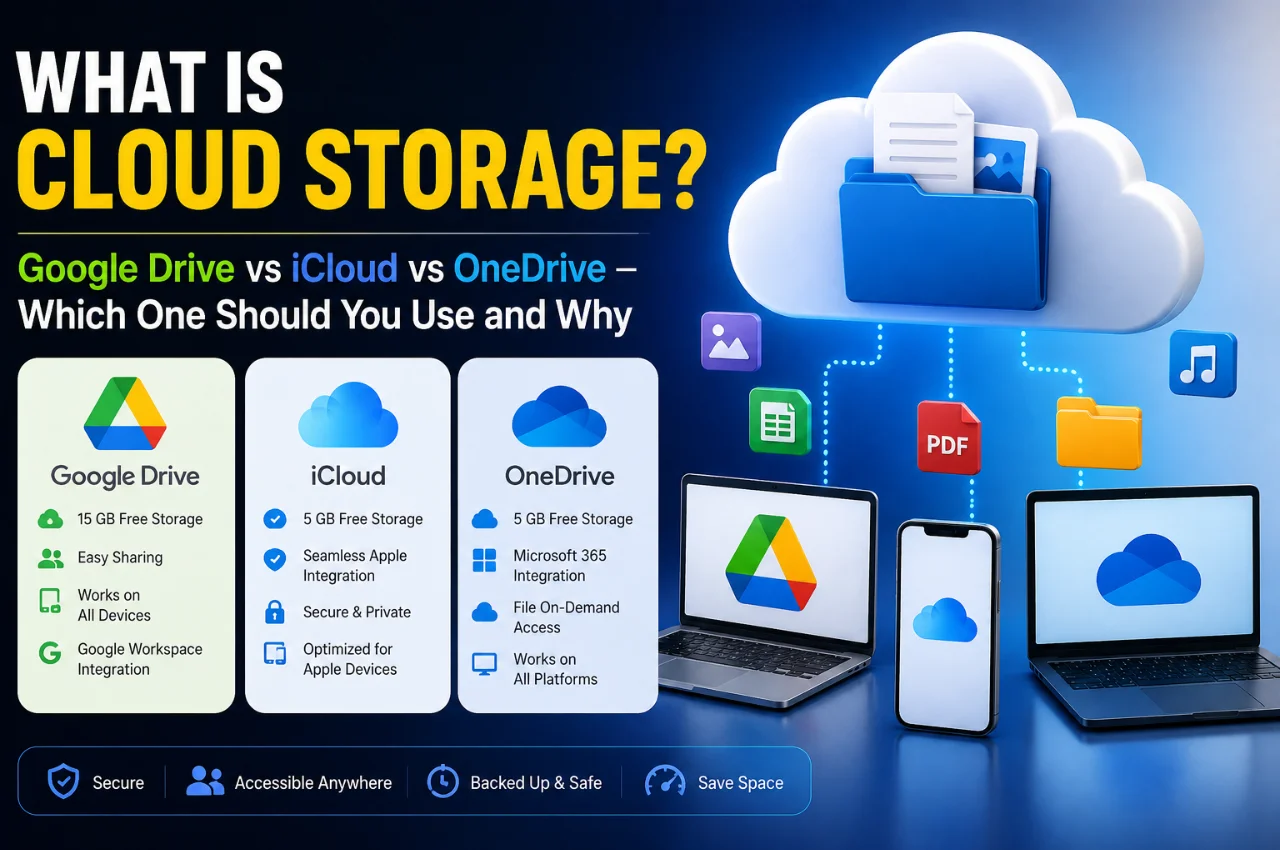
Free Storage: Google Drive gives every Google account 15GB of free storage. This is three times more than iCloud or OneDrive’s free tier. The 15GB is shared across Google Drive, Gmail, and Google Photos, but for most users it is genuinely usable without paying anything.
Paid Plans (Google One): 100GB for approximately $2 per month. 200GB for approximately $3 per month. 2TB for approximately $10 per month. These prices are competitive with iCloud at equivalent storage tiers.
Best For: Android users, Gmail users, students, content creators, anyone who collaborates on documents with others, and anyone who wants the most free storage without spending anything.
Key Strengths: Google Drive’s collaboration features are the best in this category — multiple people can edit a Google Doc, Sheet, or Slide simultaneously in real time with changes visible instantly. There is no need for anyone to install special software. You share a link and anyone with a Google account can view or edit. Google Drive works equally well on Android, iPhone, Windows, and Mac — it is completely platform-neutral. In 2026, Google Drive’s AI features have become genuinely impressive. You can search your files using natural language, get document summaries, and ask questions about file contents directly within Drive.
Key Weaknesses: The 15GB free storage is shared with your Gmail inbox and Google Photos. Heavy email users or people with large photo libraries can fill this up faster than expected. Google’s business model is built on data, which raises legitimate privacy questions — Google’s terms of service allow it to analyze your content to improve its services.
Apple iCloud — The Best Option If You Live in the Apple Ecosystem
iCloud is Apple’s cloud storage platform, and it is built entirely around the philosophy that it should work invisibly and automatically in the background — you should never have to think about it. Everything just syncs.
Free Storage: iCloud gives every Apple ID 5GB of free storage. This is the smallest free tier of the three services and fills up extremely quickly — a single iPhone backup can consume most of it.
Paid Plans (iCloud+): 50GB for approximately $1 per month. 200GB for approximately $3 per month. 2TB for approximately $10 per month. The 50GB plan is uniquely useful — Google Drive and OneDrive do not offer a comparable low-cost entry plan. For iPhone users who primarily need phone backup, 50GB is often sufficient at just $1 per month.
Best For: iPhone users, Mac users, iPad users, Apple Watch users, and anyone fully committed to the Apple ecosystem who wants seamless, automatic backup and sync across all their Apple devices.
Key Strengths: iCloud’s integration with Apple devices is unmatched. Photos taken on your iPhone appear on your iPad and Mac within seconds — automatically, silently, without any manual action. Your contacts, calendar, notes, reminders, Safari bookmarks, health data, and app data all sync instantly across every Apple device logged into the same account. iCloud Backup runs automatically every night while your phone charges — your entire iPhone is backed up to the cloud without you ever thinking about it. Privacy is a significant advantage. Apple’s Advanced Data Protection feature enables end-to-end encryption for iCloud Drive, Photos, Notes, and most other categories — meaning even Apple cannot access your data. This is the strongest privacy option among the three services.
Key Weaknesses: iCloud’s performance on non-Apple devices is poor. On Windows, the iCloud app works but feels clunky and is significantly less smooth than native Apple integration. On Android, iCloud barely functions — it is genuinely not designed for cross-platform use. The 5GB free tier fills up almost immediately for any iPhone user, essentially forcing a paid upgrade. iCloud also locks you into the Apple ecosystem — moving your data out if you ever switch to Android is a complicated process.
Microsoft OneDrive — The Best Option for Windows and Microsoft 365 Users
OneDrive is Microsoft’s cloud storage platform, built directly into the Windows operating system and tightly integrated with Microsoft 365 — Word, Excel, PowerPoint, Outlook, and Teams.
Free Storage: OneDrive gives every Microsoft account 5GB of free storage — the same as iCloud.
Paid Plans: 100GB standalone for approximately $2 per month. Microsoft 365 Personal at approximately $7 per month includes 1TB of OneDrive storage plus the full Microsoft Office suite — Word, Excel, PowerPoint, and more. Microsoft 365 Family at approximately $10 per month includes 1TB each for up to six users plus the full Office suite.
Best For: Windows users, anyone who uses Microsoft Office regularly, professionals, students who need Word and Excel, and corporate and business users.
Key Strengths: OneDrive’s integration with Microsoft Office is the deepest file-sync integration available anywhere. When you create a Word document or Excel spreadsheet, it saves automatically to OneDrive — real-time, constantly. You can close your laptop, open your phone, and continue exactly where you left off with zero manual steps. The Microsoft 365 Personal plan is exceptional value — for approximately $7 per month you get 1TB of cloud storage AND the full Office suite. If you were going to pay for Microsoft Office anyway, this plan essentially gives you 1TB of cloud storage for free. OneDrive is built into Windows 11 — there is nothing to install. Your Desktop, Documents, and Pictures folders can be automatically backed up to the cloud with one toggle in settings.
Key Weaknesses: OneDrive’s sync speed has historically been slower than Google Drive and Dropbox, though this has improved in recent versions. On iPhone and Mac, OneDrive works fine but does not integrate with the operating system as naturally as iCloud does for Apple devices. The free 5GB tier is inadequate for most real-world use. OneDrive’s interface is also considered less intuitive than Google Drive by many users.
Side-by-Side Comparison
Free Storage — Google Drive offers 15GB, iCloud offers 5GB, OneDrive offers 5GB.
Entry Paid Plan — Google Drive offers 100GB for $2/month, iCloud offers 50GB for $1/month, OneDrive offers 100GB for $2/month or 1TB with Microsoft 365 for $7/month.
Maximum Storage — Google Drive goes up to 30TB, iCloud goes up to 2TB, OneDrive goes up to 6TB on business plans.
Best Platform — Google Drive is best on Android and cross-platform, iCloud is best on iPhone and Mac, OneDrive is best on Windows.
Collaboration — Google Drive is excellent, iCloud is limited, OneDrive is very good through Office.
Privacy — Google Drive is moderate, iCloud is excellent with Advanced Data Protection, OneDrive is moderate.
Offline Access — Google Drive supports it, iCloud supports it, OneDrive supports it.
Works on Android — Google Drive works natively, iCloud barely works, OneDrive works well.
Works on iPhone — Google Drive works well, iCloud works natively, OneDrive works well.
Works on Windows — Google Drive works well, iCloud works with limitations, OneDrive works natively.
Best Value for Money — Google Drive for free users, iCloud for Apple-only users, OneDrive for Microsoft 365 subscribers.
Which One Should You Choose? — The Decision Guide
There is no single best cloud storage service. The right choice depends entirely on which devices you use, which software ecosystem you are in, and what you primarily need the storage for.
Choose Google Drive if you use an Android phone as your primary device. Google Drive is pre-installed and deeply integrated into Android — photos, contacts, app data, and files all back up automatically to your Google account. Choose it if you use Gmail heavily — your Drive, Gmail, and Photos storage are unified, and the 15GB free tier is genuinely useful for light users. Choose it if you frequently collaborate on documents with other people — Google Docs’ real-time collaboration is the gold standard. Choose it if you use multiple device types — a Windows laptop, an Android phone, sometimes a Mac — because Google Drive works consistently well across all platforms. And choose it if you want the most free storage without paying anything.
Choose iCloud if you use an iPhone as your primary device and also own a Mac or iPad. The seamless, automatic, invisible sync across Apple devices is genuinely better than anything the other services offer within the Apple ecosystem. Choose it if privacy is your top concern — enable Advanced Data Protection and your files are end-to-end encrypted with no exceptions. Choose it if you primarily need reliable automatic iPhone backup — the $1 per month 50GB plan is the cheapest meaningful cloud storage available from any major provider.
Do not choose iCloud if you use a Windows computer as your primary computer or an Android phone. Its cross-platform experience is genuinely poor and will frustrate you.
Choose OneDrive if you use Windows as your primary operating system. OneDrive’s built-in Windows integration means your important folders are automatically backed up with no setup required. Choose it if you already use Microsoft Office regularly or plan to subscribe to Microsoft 365 — the 1TB of OneDrive storage included with Microsoft 365 Personal is the best pure storage value of any paid plan at its price point. Choose it if you work in a corporate environment — OneDrive’s integration with Microsoft Teams and SharePoint makes it the natural choice for business collaboration.
What About Free Storage — Is 15GB or 5GB Actually Enough?
This depends entirely on how you use your phone and computer.
Google Drive’s 15GB free tier is shared between Drive, Gmail, and Google Photos. For users who send moderate email, store documents and some photos, and are not heavy video creators, 15GB can last a long time without paying. However, modern smartphone photos are large — a single 4K video can be several gigabytes — and power users will fill 15GB relatively quickly.
iCloud’s 5GB free tier is almost universally not enough for iPhone users. A single iPhone backup typically requires 3GB to 8GB depending on how much data is on your phone. Many iPhone users find themselves prompted to upgrade on their very first day of using iCloud seriously.
OneDrive’s 5GB is similarly limited for real-world use unless you only need to store a small number of documents.
The honest recommendation: if you are a light user who primarily wants document backup and some photo storage, Google Drive’s free 15GB is likely sufficient for a long time. If you are a heavy smartphone user with lots of photos and videos, a paid plan is almost inevitable — and the question becomes which service offers the best value at your required storage size.
Security — How Safe Are Your Files in the Cloud?
All three services use industry-standard encryption to protect your files. AES-256 encryption is used by Google Drive and OneDrive. iCloud uses its own strong encryption standards.
However, there is an important distinction that most users miss: all three services, by default, hold the encryption keys to your data. This means that technically, Google, Apple, or Microsoft could access your files if legally required to by a government or law enforcement agency.
For users who want true privacy — where absolutely nobody can access their files except themselves — only iCloud with Advanced Data Protection enabled comes close among these three services. Advanced Data Protection switches iCloud to end-to-end encryption, meaning Apple genuinely cannot access your data even if compelled. This feature must be manually enabled in Settings, then your Apple ID, then iCloud, then Advanced Data Protection.
For most everyday users storing photos, documents, and personal files, the standard encryption offered by all three services is more than adequate. The realistic threat for most people is not government surveillance but rather account hacking — which is why enabling two-factor authentication on whichever service you choose is essential.
Can You Use More Than One Cloud Storage Service?
Absolutely — and many people do. There is no rule that says you must choose only one.
A common practical setup for Indian users is to use Google Drive’s free 15GB for document backup and Gmail, while using WhatsApp’s built-in Google Drive backup for chat history, and separately using iCloud for iPhone-specific data if you have an Apple device.
Using multiple services is especially useful if you want to maximize free storage across platforms. However, it does add complexity — you need to remember which files are where. For simplicity, most people are better served by choosing one primary service that fits their ecosystem and paying for the storage tier they need.
Key Takeaway
Cloud storage is not optional in 2026 — it is how modern digital life stays safe, organized, and accessible across your devices. The question is simply which service fits your life best.
For most Indian users with Android phones and Gmail accounts, Google Drive is the natural and smartest choice — maximum free storage, best cross-platform support, and excellent collaboration tools.
For iPhone users who also own a Mac or iPad, iCloud’s seamless integration and strong privacy make it the obvious pick — just upgrade from the inadequate free 5GB to the $1 per month 50GB plan immediately.
For Windows users and Microsoft Office regulars, OneDrive bundled with Microsoft 365 is exceptional value — 1TB of storage plus the full Office suite for approximately $7 per month.
Whichever you choose — enable it, set it up properly, and let it run in the background. The best cloud storage is the one you never have to think about because it is quietly protecting everything for you.
Frequently Asked Questions
Is cloud storage safe? Can companies read my files?
All three services encrypt your files using strong industry-standard encryption. However, Google, Apple, and Microsoft technically hold the encryption keys by default — meaning they could theoretically access your files if legally required. For maximum privacy, enable iCloud’s Advanced Data Protection feature, which switches to true end-to-end encryption that even Apple cannot bypass.
What happens to my files if I stop paying for cloud storage?
If you exceed the free storage limit after downgrading or cancelling a paid plan, your files are not immediately deleted. Google, Apple, and Microsoft all give you a grace period — typically 30 to 90 days — to download your files or reduce your storage usage before any content is removed. Always download important files before cancelling a paid plan.
Can I use Google Drive on an iPhone or iCloud on Android?
Yes and no. Google Drive works excellently on iPhones — the app is well-designed and fully functional on iOS. However, iCloud on Android barely works. Apple has not released a proper iCloud app for Android. If you use an Android phone, iCloud is not a practical choice.
How much cloud storage do most people actually need?
For the average smartphone user who wants photo backup, document storage, and device backup — 100GB is generally sufficient and costs approximately $2 to $3 per month across all three services. Heavy users who shoot lots of video, store large work files, or backup multiple devices should consider a 200GB or 1TB plan.
Is it worth paying for cloud storage when my phone has 256GB of internal storage?
Yes — for a different reason. Internal storage keeps your files only on that one device. If your phone is lost, stolen, or damaged, those files are gone forever. Cloud storage provides an independent backup that survives anything that happens to your physical device. The peace of mind for a few hundred rupees per month is genuinely worthwhile.
What is the difference between Google Drive and Google Photos?
Google Photos is a specialized photo and video management service, while Google Drive is a general-purpose file storage platform. Both are Google products and both count toward your 15GB Google storage quota. Google Photos automatically organizes, backs up, and indexes your camera photos. Google Drive is where you store documents, PDFs, spreadsheets, and other files. Many users use both simultaneously.
Final Thoughts
Cloud storage has quietly become as essential as electricity for modern digital life. Whether you are protecting irreplaceable family photos, backing up important work documents, or simply trying to access files across multiple devices seamlessly — the right cloud storage service makes all of this effortless and automatic.
The good news is that all three major services — Google Drive, iCloud, and OneDrive — are reliable, well-built, and backed by companies that will be around for the foreseeable future. You genuinely cannot go badly wrong with any of them if you choose based on your actual ecosystem and needs.
Use this guide to identify which service matches your setup, sign up, enable automatic backup, and then forget about it. The best cloud storage runs silently in the background — protecting everything you care about without you ever having to think about it.