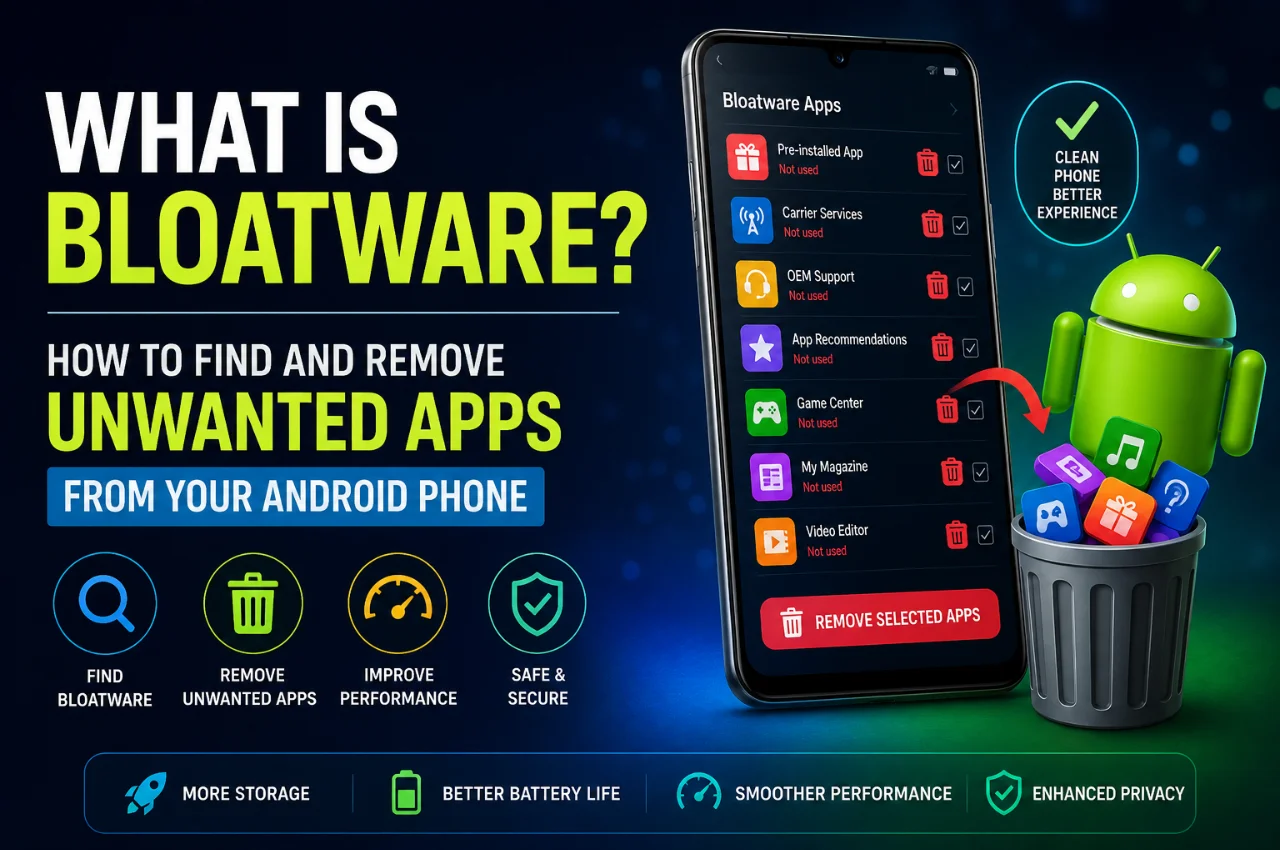
You just bought a brand new Android phone. You open the box, power it on, and the first thing you notice is a home screen full of apps you never asked for. A shopping app. A music streaming service. A news aggregator. A carrier app. And a few others whose names you don’t even recognize.
That is bloatware. And it doesn’t just happen with one brand — in India, Samsung, Realme, Redmi, Vivo, OnePlus, and practically every Android manufacturer ships phones loaded with pre-installed apps that serve the manufacturer’s commercial interests, not yours.
Bloatware drains your battery, eats your storage, uses your mobile data in the background, slows your phone down, and in some cases puts your privacy at risk. Most people ignore it simply because they don’t know it can be removed.
This guide explains exactly what bloatware is, how to find it on your phone, and how to remove it step by step — without rooting your device.
What is Bloatware?
Bloatware is unwanted software that comes pre-installed on your device by the manufacturer, mobile carrier, or operating system developer — without your permission. These apps serve no useful purpose for most users but consume your phone’s resources, storage, and battery while running silently in the background.
The name “bloatware” comes from the fact that these apps literally bloat your phone — making it unnecessarily heavy, slow, and cluttered.
Bloatware comes from three main sources. First, from the manufacturer — Samsung pre-installs Bixby, Samsung Free, Global Goals, LinkedIn, and various Microsoft apps. Realme, Vivo, and Xiaomi load their phones with shopping apps, news apps, and promotional games. Second, from Google itself — Android phones come with Google’s own bloatware including Google One, YouTube Music, Google TV, and several apps you may never open. Third, from your telecom carrier — Jio, Airtel, and Vi sometimes include carrier-specific apps on phones purchased through them.
None of these apps are essential for your phone to function, yet removing them is not straightforward because manufacturers install them at the system level.
How Bloatware Affects Your Android Phone
Many people think that if they simply don’t open bloatware apps, there is no problem. This is incorrect. Bloatware runs in the background whether you use it or not.
It drains your battery because many bloatware apps stay silently active in the background, sending notifications and consuming internet connectivity even when you are not using them. It wastes your storage — on many mid-range phones, pre-installed apps consume between 3GB and 8GB of storage before you install a single thing yourself. It slows your phone down because the more background processes running simultaneously, the more your processor and RAM are occupied — this is especially noticeable on budget phones. It wastes your mobile data because many bloatware apps auto-update in the background and load advertisements silently, consuming your data without any visible indication. And it creates a privacy risk because some pre-installed shopping, news, and promotional apps collect your usage data and share it with third parties.
The Difference Between Bloatware and System Apps
This is a critical distinction you must understand before removing anything — otherwise you risk deleting something your phone genuinely needs.
System apps are applications that your phone requires to function correctly. These include the phone dialer, camera app, Settings, Messages, Google Play Store, and core Android components. Never attempt to delete these — doing so can cause your phone to malfunction or become unusable.
Bloatware are apps that the manufacturer or carrier added for commercial reasons — your phone does not need them to operate. LinkedIn, Samsung Free, Candy Crush pre-installs, news aggregators, shopping apps, and carrier-branded apps are all bloatware.
A reliable rule of thumb: if you search the app’s name on Google Play Store and it appears as a standalone third-party app that any user can download — it is bloatware. If it is described as a core Android component or system service — leave it alone.
How to Identify Bloatware on Your Phone
Before removing anything, you need to know what you are dealing with. Here are two simple methods to find all pre-installed apps on your device.
Method one — View all apps through Settings. Go to Settings. Then go to Apps or Applications. Select See all apps or All apps. You will see a complete list of every app installed on your phone, including those not visible on your home screen. Scroll through this list and note every app you did not install and do not recognize.
Method two — Check storage usage. Go to Settings. Then go to Storage. Select Apps sorted by storage size. This shows you which apps are consuming the most space. If an unfamiliar app appears near the top of this list, it is worth investigating as potential bloatware.
Method 1 — Direct Uninstall (The Simplest Approach)
Some pre-installed apps can be uninstalled directly, exactly like any regular app you downloaded yourself.
Option A — From the home screen. Long press the app icon. Select Uninstall from the menu that appears. Confirm the action.
Option B — Through Settings. Go to Settings. Go to Apps. Find the app you want to remove. Tap on it. If the Uninstall button is active and available — tap it and confirm. The app will be completely removed.
This method works only for apps that the manufacturer installed at the user level rather than the system level. If the Uninstall button is greyed out or simply not available, the app is a system-level installation and requires a different approach.
Method 2 — Disable the App (When Uninstall is Not Available)
If an app cannot be uninstalled, you can disable it instead. Disabling an app removes it from your home screen, prevents it from running in the background, and stops it from consuming battery, RAM, and mobile data — even though it remains physically present on the phone’s internal storage.
Go to Settings. Go to Apps. Find the app you want to disable. Tap on it. Tap the Disable button. Confirm when prompted.
In practical terms, disabling is almost as effective as uninstalling for improving performance. The app stops running entirely and will no longer affect your daily experience.
For Samsung users: Go to Settings, then Apps. Tap the three-dot menu in the top right corner. Select Show system apps. This reveals all manufacturer-installed apps that are otherwise hidden. Find the apps you want to disable and do so individually.
Method 3 — Brand-Specific Instructions for Indian Android Phones
Different Android brands handle bloatware differently. Here is how to manage it on India’s most popular smartphone brands.
Samsung Galaxy phones: Go to Settings, then Apps. Select the app you want to remove. First tap Force Stop, then tap Disable. Common Samsung bloatware includes Samsung Free, Global Goals, Samsung TV Plus, LinkedIn, Microsoft 365, Bixby, and carrier apps if you purchased through an operator.
Realme and OPPO phones: These brands are among the more aggressive with bloatware in the Indian market. Apps like Soloop, Theme Store, HeyTap, and various promotional apps come pre-installed. Go to Settings, then App Management. Review each app individually and disable those you do not need.
Redmi and Xiaomi phones: MIUI includes considerable bloatware — GetApps, Mi Browser, Mi Music, Mi Video, and numerous apps pre-installed specifically for Indian market partnerships. Go to Settings, then Apps, then Manage Apps. Disable unnecessary apps one by one.
Vivo phones: Pre-installed apps including App Market, iManager, and Jovi Home can be disabled through Settings, then Apps.
OnePlus phones: OnePlus ships comparatively less bloatware than most Indian Android brands. A few partner apps like Netflix may be pre-installed but can be disabled or uninstalled easily through standard Settings.
Method 4 — Remove System Bloatware Using ADB (Advanced Users)
This method is for users who are comfortable with basic technical steps. ADB — Android Debug Bridge — is a free official developer tool from Google that allows your computer to communicate directly with your Android phone. Using ADB, you can remove system-level bloatware that cannot be touched through Settings — without rooting your device.
Important warning: Removing the wrong app can disable important phone functions. Only remove apps you can clearly identify as bloatware. Back up your phone before proceeding with any ADB commands.
Step 1 — Download the Android SDK Platform Tools from the official Google developer website at developer.android.com/tools/releases/platform-tools. Extract the downloaded file to a folder on your computer.
Step 2 — Enable Developer Options on your phone. Go to Settings. Go to About Phone. Tap Build Number seven times in a row. Developer Options will unlock. Go to Developer Options and enable USB Debugging.
Step 3 — Connect your phone to your computer using a USB cable. When your phone asks whether to trust the connected computer, tap Trust.
Step 4 — Open Command Prompt on Windows or Terminal on Mac. Navigate to the Platform Tools folder you extracted earlier.
Step 5 — Type the following command and press Enter: adb devices — your phone should appear in the list confirming the connection is working.
Step 6 — To find the exact package name of the app you want to remove, type: adb shell pm list packages — this produces a complete list of all apps installed on your phone by their package identifiers.
Step 7 — Identify the package name of the bloatware app. For example, Samsung Bixby has the package name com.samsung.android.bixby.agent. Samsung Free is com.samsung.android.wcommunity. You can also search online for the package name of any specific app.
Step 8 — To remove the app, type: adb shell pm uninstall –user 0 [package-name] — replacing [package-name] with the actual identifier. The app will be removed for your user profile.
Note: This method removes the app for your current user profile. If you perform a factory reset, the bloatware will return. However, for everyday use, this is completely effective.
Common Samsung Bloatware — Safe to Remove
Here are the most common Samsung bloatware apps that can be safely disabled or removed via ADB:
Samsung Free — package name com.samsung.android.wcommunity — A news and content aggregator that pushes constant notifications.
Bixby Voice — package name com.samsung.android.bixby.agent — Samsung’s voice assistant that most users never use intentionally.
Global Goals — package name com.samsung.android.globalgoals — A UN charity app pre-installed on Galaxy devices that serves no functional purpose for most users.
Samsung TV Plus — package name com.samsung.android.tvplus — A streaming service with no practical use on a mobile phone.
LinkedIn — package name com.linkedin.android — Pre-installed due to a Microsoft and Samsung commercial partnership.
Samsung Kids — package name com.samsung.android.kidsinstaller — Only useful for parents of young children.
Apps You Should Never Remove
This is critically important. Never attempt to remove these apps — doing so can cause serious problems including a non-functional phone:
The phone dialer app, the default Messages app, the Settings app, Google Play Services, the Google Play Store, Android System WebView, the Download Manager, the Package Installer, and any app with “System,” “Framework,” or “Service” in its description.
General rule: If a Google search for the app returns results describing it as a core Android system component or framework — do not touch it.
Should You Root Your Phone to Remove Bloatware?
Rooting gives you complete administrative access to your Android phone, allowing you to permanently delete any app including deep system components. While rooting is sometimes discussed as the ultimate solution to bloatware, it comes with serious consequences that make it inadvisable for most users.
Rooting voids your manufacturer warranty immediately. There is a real risk of bricking your phone if the process goes wrong. Major Indian banking and UPI apps including BHIM, PhonePe, and many bank apps detect rooted devices and refuse to run. Security updates may not apply correctly on rooted devices. And the process is complicated and different for every phone model.
In 2026, rooting is unnecessary for managing bloatware. The ADB method described above removes virtually all problematic system apps without rooting and without any of these risks. Rooting is only relevant for advanced developers who need complete system-level control for specific technical purposes.
Checklist — What to Do When You Get a New Android Phone
Follow these steps on any new Android phone to control bloatware from day one:
During the initial setup process, skip every optional app installation offer that appears — decline all pre-loading suggestions. Then go to Settings and Apps and scan the complete app list on your first day. Disable every app you know you will never use. In notification settings, turn off notifications for every pre-installed app you did not choose to install. In Settings, go to Battery or App Management and restrict background activity for any pre-installed app that is not essential. Finally, in the Google Play Store, go to Manage Apps and Updates and disable automatic updates for pre-installed apps you have disabled — this prevents them from unnecessarily updating in the background.
Does iPhone Have Bloatware Too?
Yes — but significantly less than Android. Apple iPhones come with certain pre-installed Apple apps that some users consider unnecessary — Stocks, Tips, Magnifier, Home, and a few others. Since iOS 10, Apple has allowed users to delete many of its stock apps.
To remove unwanted Apple apps on iPhone: Long press the app icon on your home screen. Select Remove App. Confirm.
Some Apple apps can be fully deleted while others can only be hidden. Importantly, Apple does not allow third-party companies to pre-install their apps on iPhones — which is why the bloatware problem is far less severe on iOS than on Android.
Key Takeaway
Your phone belongs to you — not to the manufacturer. But through bloatware, manufacturers and carriers impose their commercial interests on your device at the cost of your battery life, storage, performance, and privacy.
Using the methods in this guide — from simple disabling through Settings to the more thorough ADB approach — you can genuinely reclaim your phone and make it faster, cleaner, and more private.
Start today. Open your app list, identify what does not belong there, and disable it. You will notice the difference immediately.
Frequently Asked Questions
Does removing bloatware void my phone’s warranty?
Disabling apps through Settings or removing them via ADB does not void your warranty. Your warranty is only affected if you root your device. All methods described in this guide are completely safe and do not impact your warranty in any way.
Does disabling an app free up storage space?
Not immediately. Disabling an app stops it from running in the background and consuming battery, RAM, and data — but the app’s storage footprint remains. To fully reclaim storage, use the ADB method to uninstall the app from your user profile.
Does bloatware come back after a factory reset?
Yes. A factory reset restores your phone to its original manufacturer state, which includes all pre-installed bloatware. If you remove bloatware using ADB and later factory reset your phone, you will need to repeat the process.
Are there apps that automatically detect and remove bloatware?
Several apps on the Google Play Store claim to identify and remove bloatware. However, most effective bloatware removal still requires manual identification or ADB. Be cautious with third-party cleaner apps — many of them are poorly made and some are themselves a form of bloatware.
Which Android phone brand has the least bloatware in India?
Google Pixel phones have the least bloatware among Android phones — they run a clean version of Android with minimal pre-installed third-party apps. Among mainstream brands available in India, OnePlus and Nokia phones generally have less bloatware than Samsung, Realme, Vivo, or Xiaomi.
Final Thoughts
Bloatware is one of the most common and most ignored problems with Android phones in India. Manufacturers load your device with commercial apps that benefit their business relationships — at the expense of your battery, your storage, your data, and your performance.
The good news is that you have more control than you think. Disabling through Settings takes two minutes. The ADB method takes twenty minutes and handles even stubborn system-level apps. Both approaches are safe, free, and require no rooting.
Spend some time today going through your app list. Remove or disable everything that does not serve your needs. A cleaner phone is a faster phone — and now you have everything you need to make it happen.