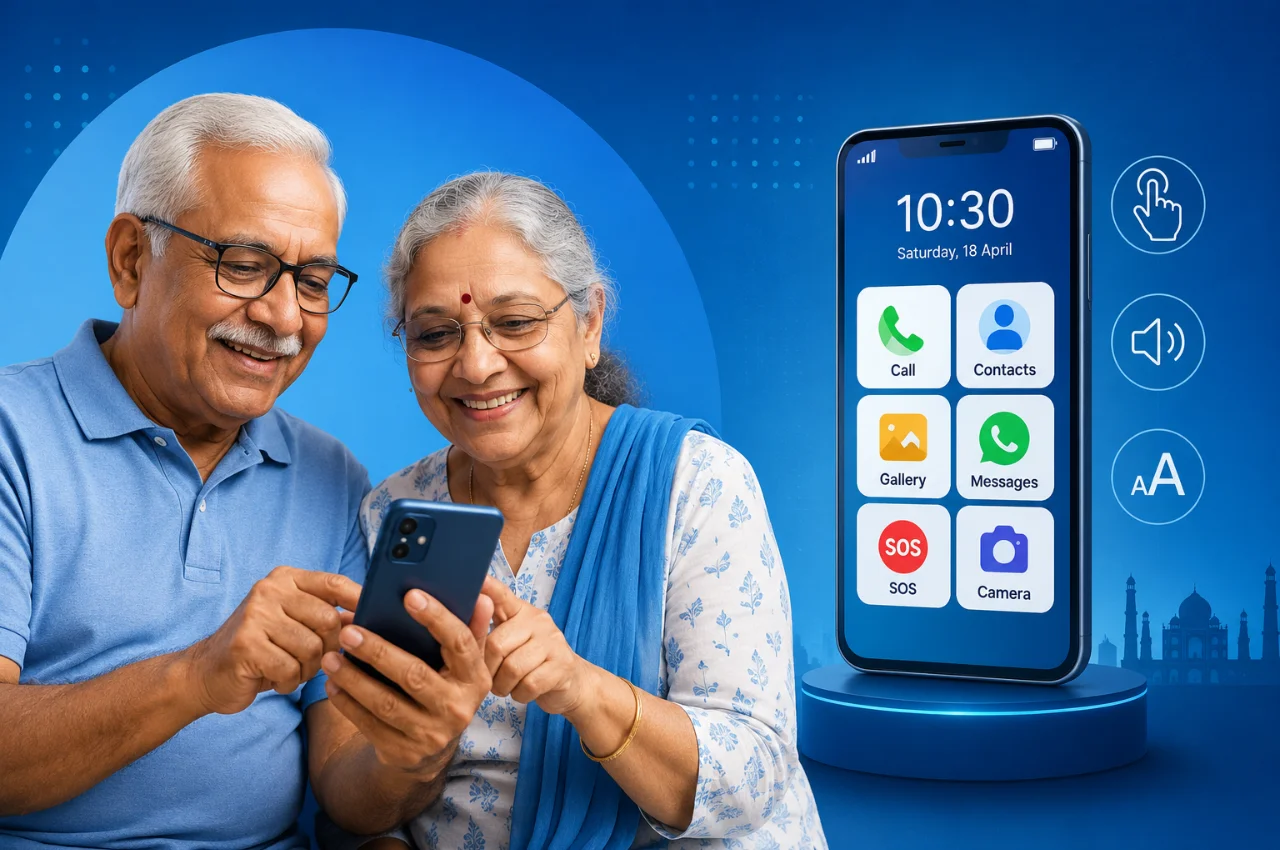
Your father keeps accidentally calling the wrong person. Your mother cannot read the text on the screen without squinting. Your grandmother is afraid of pressing the wrong button and breaking something. You want to stay connected with them through video calls and WhatsApp, but the phone you bought them three years ago has become more of a source of frustration than connection.
This is one of the most common technology challenges Indian families face in 2026 — and it is one that has genuinely good solutions, as long as you know what to look for.
This guide is written for family members who want to buy the right phone for an elderly parent or grandparent, and for senior citizens themselves who want to understand what makes a phone genuinely easy to use. It covers what features actually matter, which specific phones are worth considering at different budgets, and how to set up any Android phone to be as simple and accessible as possible.
Why Most “Senior Phone” Advice Gets It Wrong
Before getting into recommendations, it is worth addressing a common mistake in how people approach buying phones for elderly family members.
The instinct is often to buy the cheapest possible phone — the assumption being that a simple phone for simple needs does not need to cost much. This backfires for several reasons. Budget phones often have dim screens that are genuinely difficult to see in Indian daylight conditions. They run outdated Android versions with less accessibility support. Their processors are too slow to handle video calls smoothly. And they typically stop receiving security updates within a year or two, leaving elderly users vulnerable to scams on unpatched software.
The other common mistake is buying a feature phone — a basic calling-only device — for a senior who actually wants to video call grandchildren on WhatsApp, read news articles, or use UPI for payments. Feature phones seem simpler but they make the things seniors most want to do harder or impossible, not easier.
The right approach is to buy a proper smartphone with a large screen, good display brightness, a generous battery, and then configure it to be simple — rather than buying a phone that is inherently limited.
What Features Actually Matter for Senior Citizens
Not every specification on a phone’s listing matters equally for elderly users. These are the ones that genuinely make a difference.
Large, Bright Display
Screen size and brightness are the two most important hardware factors for elderly users. Vision changes with age — contrast sensitivity decreases, reading small text becomes harder, and bright environments make dim screens nearly impossible to read.
A screen of at least 6.5 inches gives comfortable reading space. Brightness of at least 600 nits ensures the screen is usable outdoors and in well-lit Indian homes. AMOLED displays are particularly good for seniors because their higher contrast makes text easier to distinguish from backgrounds.
Loud and Clear Audio
Hearing loss is one of the most common changes that comes with age. A phone that sounds clear and loud enough for a senior with moderate hearing difficulty is not a luxury — it is a functional requirement. Look for phones with front-facing or upward-firing speakers rather than bottom-firing speakers that get muffled when the phone rests on a surface.
Hearing aid compatibility is worth checking if your family member uses a hearing aid. Some phones are specifically rated M3 or M4 for hearing aid compatibility, which reduces interference.
Long Battery Life
Charging anxiety is real for elderly users who may not remember to charge daily or may struggle with small charging ports. A phone with a 5,000 mAh or larger battery that can genuinely last a full day or more of normal use — calls, messaging, browsing — removes a daily friction point. The Motorola G06 Power launched in January 2026 with a 7,000 mAh battery and has become a recommended choice specifically because elderly users can go two or more days without charging.
Simplified Software Interface
This is the most important software feature. A phone that bombards a new user with notifications, app icons they did not install, and confusing menus will be abandoned regardless of how good its hardware is. Samsung’s Easy Mode is the most comprehensive simplified interface available on Android — it does not just make icons bigger, it modifies touch sensitivity, simplifies the settings menu, and adds a favorite contacts panel that puts the most important people one tap away. It is available on all Samsung Galaxy phones and is worth enabling immediately on setup.
Emergency SOS Feature
The ability to quickly call for help is not a feature seniors will use daily, but it matters enormously for the peace of mind of both the senior and their family. Most modern Android phones allow you to configure emergency SOS by pressing the power button rapidly three to five times, which automatically calls pre-set emergency contacts and optionally sends a location. This should be configured on any phone bought for an elderly family member.
Physical Durability
Drops happen. Wet hands near sinks happen. An IP52 or higher water resistance rating protects against accidental splashes. Gorilla Glass on the screen provides some drop resistance. A phone case — ideally a rubber case with raised edges that protect the screen when placed face-down — should be considered a standard accessory rather than an optional one.
Software Update Support
A phone that stops receiving security updates within two years is a phone that becomes increasingly vulnerable to the scams and fraud that specifically target elderly users. Samsung offers four years of updates on its A series phones. Motorola offers two to three years. Prioritize brands with longer update commitments for senior users.
Specific Phone Recommendations for 2026
These are concrete recommendations based on the criteria above, organized by budget range relevant to Indian families.
Best Value Option — Motorola G06 Power (approximately ₹7,499)
The Motorola G06 Power launched in January 2026 and has quickly become one of the most recommended budget phones for elderly users in India. Its 7,000 mAh battery — the largest available in India at this price point — means most seniors can go two or more days without charging, which removes a major daily frustration. The 6.88-inch display is large enough for comfortable reading. It runs clean Android 15 with minimal bloatware, which makes the interface less confusing than the heavily customized Android versions on many budget phones. It is IP64 rated for dust and water resistance and has Gorilla Glass 3 screen protection.
The limitation is that Motorola’s simplified interface is less comprehensive than Samsung’s Easy Mode. You will need to configure the accessibility settings manually — increase font size to the maximum, increase display size, and simplify the home screen. This takes about thirty minutes of setup but is straightforward.
Best Overall Option — Samsung Galaxy A16 5G (approximately ₹14,999)
Samsung’s Galaxy A series is the most recommended category for senior users because of Samsung’s Easy Mode — the most capable simplified interface available on Android. The Galaxy A16 5G has a 6.7-inch Super AMOLED display with good brightness, a 5,000 mAh battery, a clean camera, and Samsung’s six-year update commitment. At this price, it represents a meaningful step up from budget options in display quality, build quality, and long-term software support.
Easy Mode makes this phone feel genuinely simple to use. Once enabled, the home screen shows large app icons with text labels, a quick contacts panel for calling favorite people, and a simplified settings interface. Most senior users who have switched to Samsung phones with Easy Mode enabled report a significantly better experience than on budget Android phones.
Best Premium Option — Samsung Galaxy A26 5G (approximately ₹21,999)
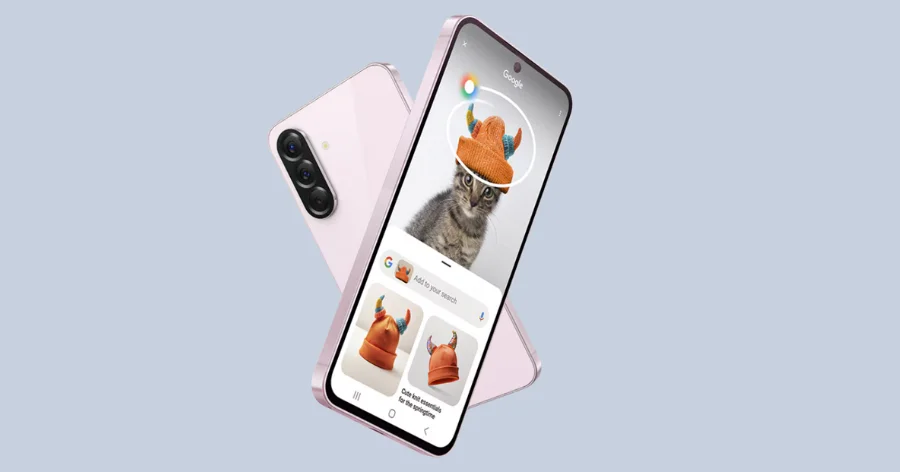
For families who want to buy a phone their elderly relative will use comfortably for five or more years, the Samsung Galaxy A26 5G offers IP67 water and dust resistance, a bright 6.7-inch AMOLED display, seven years of software updates, Samsung’s Easy Mode, and emergency SOS. The IP67 rating is particularly valuable — it means the phone can handle being dropped in water up to one meter deep for thirty minutes, which provides genuine protection against kitchen and bathroom accidents.
For Seniors Who Primarily Need Calls and Basic WhatsApp — JioPhone Prima 4G (approximately ₹3,499)
If your elderly family member genuinely only needs to make calls, receive calls, and use basic WhatsApp — and finds a full smartphone overwhelming — the JioPhone Prima 4G is worth considering. It has physical buttons for calling and volume, a simplified interface, a long battery life, and a familiar phone-like form factor that feels more natural to users who grew up with feature phones. It does not handle complex apps well, but for its specific use case it is a practical and affordable option.
How to Set Up Any Android Phone for a Senior Citizen
Buying the right phone is only half the job. How you set it up determines whether it actually gets used comfortably. Budget approximately one to two hours for initial setup and plan to sit with your family member while doing it so they can see what is being changed and why.
Step one is to enable Easy Mode if the phone is a Samsung. Go to Settings, then Display, then Easy Mode, and toggle it on. This single change transforms the experience. If the phone is not a Samsung, go to Settings, then Accessibility, then Display Size and Text, and increase both font size and display size to the maximum comfortable level.
Step two is to increase font size and display size. Even on non-Easy Mode phones, going to Settings, then Accessibility, then Text and Display Size, and setting both to the largest comfortable option makes a significant difference. Most seniors do not realize this is possible and struggle with default text sizes unnecessarily.
Step three is to set up the home screen with only essential apps. Remove or hide every app that is not needed. The home screen should have at most five to eight apps: Phone, Contacts, WhatsApp, Camera, Gallery, Google Chrome or JioBrowser, YouTube if relevant, and perhaps a news app. Everything else should be removed from view. Fewer icons means less confusion and fewer accidental taps.
Step four is to configure the favorite contacts panel on Samsung’s Easy Mode, or create large contact shortcuts on the home screen for any other Android phone. Put the three to five most-called people — typically children, spouse, and a trusted neighbor — one tap away from the home screen. Knowing that calling the important people is always one tap away removes enormous anxiety for elderly users.
Step five is to set up Emergency SOS. On Samsung phones, go to Settings, then Safety and Emergency, then Emergency SOS. Enable it and add three to five emergency contacts. Set it to trigger with five presses of the power button. Test it in non-emergency mode to make sure it works. On other Android phones, search for Emergency SOS in Settings or Safety settings.
Step six is to enable face unlock if the phone supports it. Face recognition is significantly easier for elderly users than typing a PIN or using a fingerprint scanner, particularly for those with arthritis or dry skin that makes fingerprint recognition unreliable. Go to Settings, then Security and Privacy, then Biometrics, then Face Recognition, and set it up.
Step seven is to configure WhatsApp for accessibility. Open WhatsApp, go to Settings, then Chats, then Font Size, and set it to Large. Also go to the phone’s Accessibility settings and enable Larger Accessibility Fonts if available, which increases text size across all apps including WhatsApp.
Step eight is to write down the phone’s PIN or password on paper and keep it somewhere safe. This sounds basic but is one of the most common practical problems with elderly users and phones — they forget PINs and get locked out. Write it down, put it somewhere the family member can find it, and make sure at least one family member also knows it.
Step nine is to configure Do Not Disturb for night hours. Go to Settings, then Sounds, then Do Not Disturb, and set a schedule so the phone does not disturb sleep with notifications. Allow calls from saved contacts to come through even during Do Not Disturb, so family can reach them in an emergency.
Step ten is to remove the SIM tray tool from the box and keep it somewhere accessible. Elderly users sometimes need help with SIM-related issues, and having the tool available saves a trip to a mobile shop.
Protecting Senior Citizens From Phone Scams
This is a section that deserves specific attention because elderly users in India are disproportionately targeted by phone-based fraud. The scale of the problem is significant — some of the most common scams in India specifically target senior citizens, exploiting unfamiliarity with digital systems to extract money or personal information.
Fake bank calls claiming account compromise and requesting OTPs are the most common vector. Set a clear, memorized rule with your elderly family member: your bank will never call and ask for your OTP or PIN. If anyone calls claiming to be from the bank and asks for these, hang up immediately and call the bank’s official number.
Digital arrest scams — where callers impersonate law enforcement and claim the senior is under investigation — have been widely reported across India. The rule is equally simple: no real law enforcement agency calls your personal phone to conduct an investigation. These calls are always fraud.
Google’s Scam Detection feature, available on Android phones updated to recent versions, automatically flags suspicious calls in real time. Enabling it in the Phone app settings adds a layer of automatic protection.
Consider blocking unknown callers by default, using the Phone app’s built-in spam filtering, and adding the numbers of all family members and known contacts to the address book — because most scammers call from unrecognized numbers.
Setting Up UPI for Senior Citizens — Simplified
UPI has become genuinely useful for elderly users — paying at shops without handling cash, receiving money from family, paying utility bills. But the setup can be confusing without guidance.
The simplest UPI app for senior citizens is PhonePe or Google Pay — both have large text options and clear interfaces. Set up the UPI app while sitting with your family member. Link the bank account, set the UPI PIN, and walk through one or two test transactions so they understand the flow.
The single most important rule to teach about UPI: you never need to enter your UPI PIN to receive money. Only entering PIN to send money is correct. If anyone ever asks you to enter your PIN to receive a payment, it is fraud.
Write down the UPI PIN on the same paper as the phone PIN and keep it secure.
Frequently Asked Questions
Should I buy an Android phone or iPhone for my elderly parents?
For most Indian families, Android is the more practical choice for elderly users. iPhones are excellent but significantly more expensive, and the accessories, repair services, and local support for Android phones are more widely available across India. Android’s accessibility settings — particularly Samsung’s Easy Mode — are more flexible for senior user needs. The exception is if the rest of the family uses iPhones, in which case FaceTime integration may be valuable enough to justify the price difference.
What screen size is best for elderly users?
6.5 inches or larger is the recommended minimum for comfortable daily use. The larger the screen, the easier text is to read and the more comfortable video calls are. Very large phones above 6.9 inches can become unwieldy for elderly users with smaller hands, so the ideal range for most seniors is 6.5 to 6.8 inches.
Is 5G necessary for a phone bought for senior citizens?
Not immediately — 4G LTE is entirely sufficient for calls, WhatsApp, UPI, and video calls at quality levels seniors will use. However, 5G phones are increasingly available at no significant price premium over equivalent 4G phones in India in 2026, and future-proofing makes sense for a device that may be used for four or five years.
My mother is nervous about smartphones and afraid of making mistakes. How do I help her?
The most important thing is patience and repeated practice rather than a single setup session. Identify the three things she most wants to do — typically calling family, WhatsApp video calls, and perhaps reading news — and focus entirely on those for the first month. Do not try to teach everything at once. Let her build confidence with the basics before introducing anything new. The fear of making mistakes disappears quickly when a few simple things work reliably and she realizes that no mistake is permanent.
What is the best way to teach an elderly parent to use WhatsApp?
Start with voice notes rather than text messages — they are more natural for people who find typing on a touchscreen difficult. Show them how to press and hold the microphone icon, speak, and release. Then teach video calls. Then teach photo sharing. Build from what they already know how to do — speaking and looking at photos — before introducing anything requiring typing or reading navigation menus.
Final Thoughts
The best smartphone for a senior citizen is not the cheapest one or the most feature-limited one. It is the one that reliably does the things they actually want to do — stay connected with family through calls and video, use UPI for simple payments, and perhaps read news or watch videos — set up in a way that feels manageable rather than overwhelming.
Samsung Galaxy A-series phones with Easy Mode enabled, set up patiently and properly, are the most consistently successful choice for Indian senior citizens across a range of budgets. The Motorola G06 Power is the standout budget option with its exceptional battery life. For families who want a phone their elderly relative will use with confidence for many years, the investment of a few extra thousand rupees in a better device and a few extra hours in proper setup pays for itself in the connection and peace of mind it enables.
The technology is good. The setup and teaching — that is the real work, and it is worth doing well.