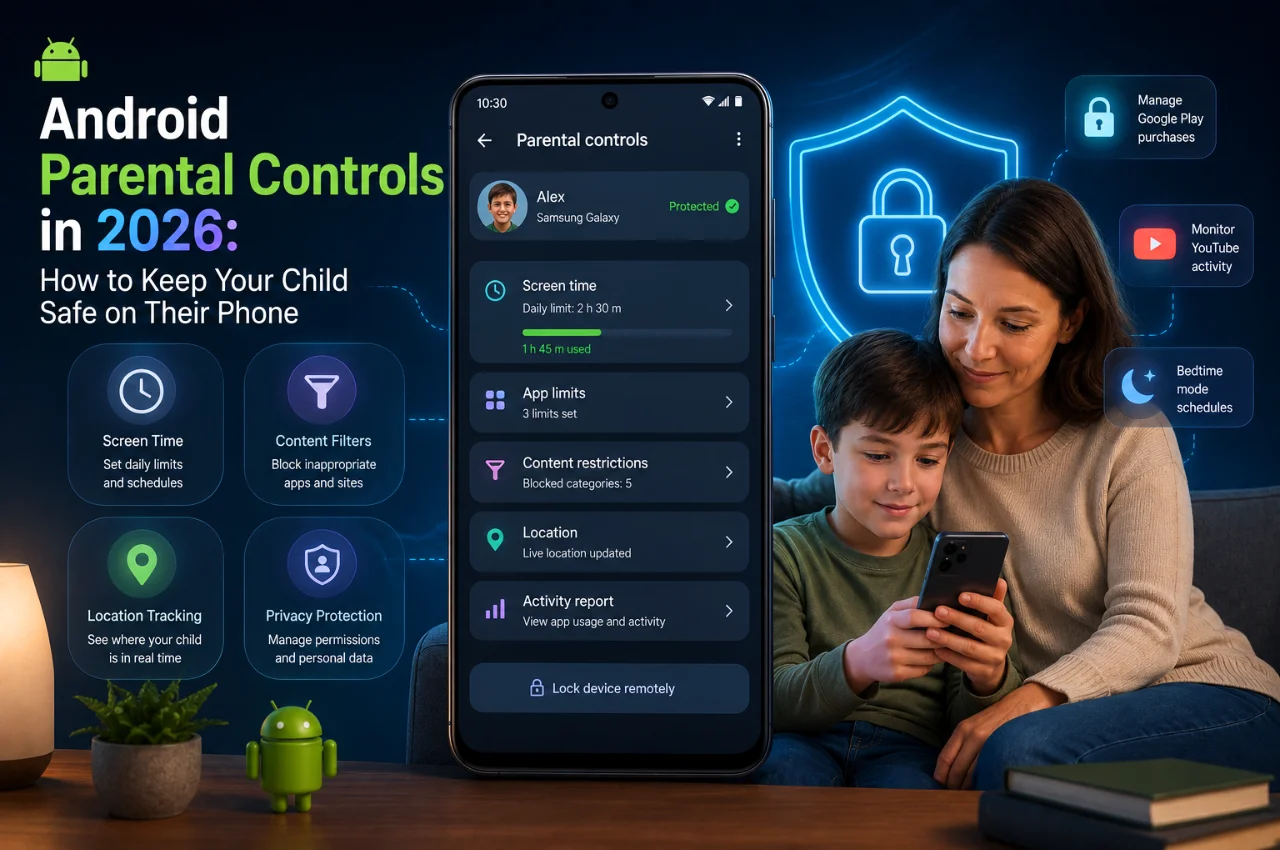
Handing your child a smartphone is one of those parenting moments that feels simultaneously necessary and slightly terrifying. They need it for school communication, for staying in touch with you, for homework, for being part of their social world. But the same device that connects them to all of that also connects them to an unfiltered internet, to social media pressure, to potentially inappropriate content, and to the kind of unlimited screen time that most parents find deeply uncomfortable.
The good news is that Android phones come with built-in tools specifically designed for this situation — and in 2026, those tools have become genuinely good. With about thirty minutes of setup, you can give your child a phone that works for the things it should work for, limits the things that need limits, and keeps you informed about how it is being used.
This guide walks through every major Android parental control option available in 2026 — from Google’s official Family Link app to built-in device settings to the Play Store — with exact steps and practical advice for different ages.
Why Parental Controls Matter More in 2026
India has seen a 124% surge in searches for “Android parental controls” in the past year alone, according to Kantar’s India search report. Children are getting smartphones younger — the average age for a first smartphone in India is now around ten to eleven years — and parents are realizing that good intentions alone are not enough.
The internet in 2026 is different from the internet of even five years ago. Recommendation algorithms on YouTube, Instagram, and other platforms are extraordinarily good at finding and serving content that keeps young people engaged — including content that many parents would not want their children spending hours watching. Online gaming communities, anonymous messaging apps, and social media all present genuine risks that did not exist in the same form a decade ago.
None of this means children should not have phones. It means the phones should be set up thoughtfully. Parental controls are not about spying on your child or creating a surveillance state in your home. They are about applying age-appropriate guardrails that shrink over time as your child develops their own judgment and earns more trust.
The Four Main Tools Android Offers
Before getting into the setup steps, it helps to understand the four main tools available and what each one does. They work best when used together.
Google Family Link is Google’s official parental control app and the most powerful tool available for managing an Android phone your child uses. It runs on your phone as the parent and on your child’s phone simultaneously, giving you a dashboard where you can see app usage, set time limits, approve or block app downloads, manage location sharing, and lock the device remotely.
Digital Wellbeing is built directly into every Android phone and provides screen time tracking and app-level time limits. It is less comprehensive than Family Link but useful for teenagers who do not have a supervised Google account.
Google Play Store restrictions allow you to set content ratings limits on apps, games, movies, and books that can be downloaded through the Play Store, and require parental approval before any purchase.
Google SafeSearch and YouTube Restricted Mode filter explicit content from search results and YouTube recommendations at the app level.
Used together, these four tools create multiple layers of protection that cover the most significant risk areas for most families.
Method 1 — Setting Up Google Family Link (The Most Important Step)
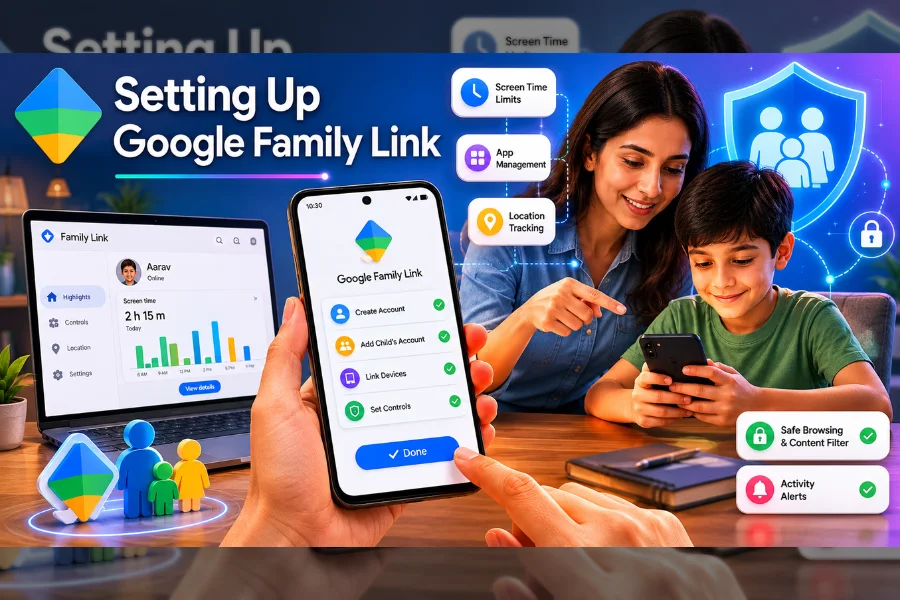
Google Family Link is the foundation of Android parental controls and the first thing to set up. It works by linking your Google account as the parent supervisor to your child’s Google account on their device.
Before you begin, you need two things: a Google account for your child (children under thirteen need to have their account created through the Family Link setup process — they cannot create standard Google accounts independently) and the Google Family Link app installed on your own phone.
Step one: Download the Google Family Link app on your phone from the Google Play Store. Open it and tap Get Started.
Step two: The app will ask whether you are setting up for a child under thirteen or supervising a teenager over thirteen. Choose accordingly. For children under thirteen, tap Create a Google Account for your child and follow the prompts to create their account. You will need to provide their name, birthdate, and create a Gmail address for them.
Step three: On your child’s phone, open Settings and go to Digital Wellbeing and Parental Controls. Tap Set Up Parental Controls. Select Child or Teen and follow the on-screen instructions to sign in with the child’s Google account you just created.
Step four: The two devices will now link. Your Family Link app will show your child’s device and give you access to the full range of controls.
Once linked, here is what you can see and control from your Family Link dashboard on your phone. Activity reports show you exactly which apps your child used and for how long each day and week. App approvals mean that every time your child wants to download an app from the Play Store, a notification appears on your phone — you approve or deny it before it installs. Screen time limits let you set a daily total time limit for the device, after which the phone locks and your child can only make calls to contacts you approve. Bedtime settings lock the phone completely during hours you specify — for example, from 9 PM to 7 AM. Location tracking shows your child’s current location in real time on a map. Remote lock lets you lock the device from your phone immediately if you need to.
For children between ten and thirteen years old, Family Link is the most practical and comprehensive solution available.
Method 2 — Setting Screen Time Limits on Any Android Phone
If your child is a teenager and has their own Google account without supervised mode, or if you want to set up device-level screen time limits independently of Family Link, Android’s Digital Wellbeing tools handle this directly on the device.
On the child’s phone, go to Settings and then Digital Wellbeing and Parental Controls. You will see a dashboard showing today’s screen time broken down by app.
To set a time limit for a specific app, tap the chart icon next to any app in the list. Tap App Timer and set the maximum daily usage time. When the timer runs out, the app icon grays out and cannot be opened until the next day or until a parent disables the timer.
To set a bedtime schedule for the entire device, tap Bedtime Mode. Set the start and end time. During bedtime, the screen goes to greyscale and notifications are silenced. Unlike Family Link’s lock, Bedtime Mode in Digital Wellbeing does not hard-lock the device — it is a softer reminder rather than an enforced cutoff.
To set Focus Mode — which blocks distracting apps during homework or study time — tap Focus Mode in Digital Wellbeing. Select the apps you want to block during focus sessions and set a schedule or activate it manually.
The limitation of Digital Wellbeing controls is that they can be turned off by whoever has access to the phone’s settings. For younger children, these controls need to be combined with a PIN-protected settings menu to prevent them from simply disabling the restrictions.
Method 3 — Setting Up Play Store Parental Controls
The Google Play Store has its own parental controls that restrict which apps, games, movies, and books can be downloaded based on age ratings. This is separate from Family Link but complements it.
On your child’s phone, open the Google Play Store. Tap the profile icon in the top right corner. Go to Settings, then Family, then Parental Controls. Toggle Parental Controls on. You will be asked to create a PIN — choose something your child does not know.
Under Apps and Games, select the maximum age rating you want to allow. The options are rated for everyone, rated for ages 7 and above, rated for ages 12 and above, rated for ages 16 and above, and rated for adults. For a ten-year-old, setting this to 12 and above is a reasonable starting point. For a teenager, 16 and above is typically appropriate.
Under Movies, set the maximum rating to U or UA depending on your preference. Under Music, you can enable the filter that hides explicit content.
These filters apply at the point of download — apps with higher ratings will not appear in search results or be downloadable. They do not affect apps already installed on the device, so check existing apps separately.
Method 4 — Filtering Google Search and YouTube
Two of the most common ways children encounter inappropriate content on phones are through Google Search results and YouTube recommendations. Both can be filtered.
For Google SafeSearch, go to google.com in Chrome on your child’s phone. Tap the three dots in the top right and select Settings, then SafeSearch. Turn SafeSearch on. This filters explicit images, videos, and websites from Google Search results. If you have Family Link set up, you can lock SafeSearch from your parent dashboard so your child cannot turn it off.
For YouTube, open the YouTube app on your child’s phone. If your child is under thirteen with a supervised Family Link account, YouTube automatically applies stricter content filters. For older children, open YouTube, tap the profile icon, and go to Settings, then General. Enable Restricted Mode. This filters out most mature content from recommendations and search results.
For younger children who primarily watch YouTube, YouTube Kids is a separate app specifically designed for children under twelve. It has a completely separate content library of child-appropriate videos, no public comments, no external links, and built-in timer features. Installing YouTube Kids and removing the standard YouTube app from your child’s phone is a significant safety improvement for that age group.
Method 5 — Setting Location Sharing
Knowing where your child’s phone is can be genuinely reassuring — particularly for parents of children who commute to school, attend activities, or are in unfamiliar situations.
If you have Family Link set up, location sharing is built in. Open your Family Link app, tap your child’s name, and tap Locate. Their phone’s current location appears on a map.
You can also set location alerts — notifications that arrive when your child’s phone arrives at or leaves a specific place, such as school or home. In Family Link, this is called Places. Tap your child’s name, then tap Places, and add the locations you want to be notified about.
For teenagers without supervised Family Link accounts, Google’s Find My Device works across Google accounts and allows location sharing between family members who have opted in through Google Maps location sharing.
One important note: location sharing works when the phone is on and connected to a network. It also requires that your child has not turned off location services — which is why securing the Settings menu with a PIN for younger children matters.
Method 6 — Securing the Phone Settings Themselves
All the parental controls in the world are less effective if your child can simply go into Settings and turn them off. Preventing this requires securing the Settings app or specific controls with a PIN that only you know.
Family Link automatically protects its supervised controls — your child cannot disable Family Link restrictions without your approval. But Digital Wellbeing controls and some other settings are accessible to whoever uses the phone.
On Samsung phones, you can use the Secure Folder or Knox Security features to restrict access to specific apps and settings. On most Android phones running Android 12 and above, there is a PIN-protection option within parental control settings that requires your PIN to modify any parental control setting.
Setting up a separate user account for your child — rather than having them use the phone’s primary account — also limits what they can access in the Settings menu. To do this, go to Settings, then Users and Accounts, then Add User, and set up a restricted profile for your child. They can use the phone’s apps within their profile without having access to the full settings of the primary account.
Brand-Specific Parental Control Features
India’s most popular Android phone brands each have additional parental control tools worth knowing about.
Samsung phones running One UI have Kids Mode — a separate, completely controlled environment designed for younger children. When Kids Mode is active, the child sees a child-friendly home screen with only the apps you have approved, cannot access regular Android settings, and cannot exit Kids Mode without the parent’s PIN. It includes a built-in timer that automatically exits after a set period. Find it by searching Kids Mode in the Settings or through the digital wellbeing section.
Xiaomi and Redmi phones have Kids Space under their second space or app lock features, which allows creating a restricted environment with approved apps only. Screen time controls under Settings, Digital Wellbeing, allow app timers similar to standard Android.
OnePlus phones have Kids Space accessible through their phone manager or system settings, with similar controlled environment features.
Age-Appropriate Settings — What to Apply at Different Ages
The right level of restriction changes significantly as children grow. Here is a practical framework.
For children aged six to nine who are using a tablet or phone primarily for educational apps and YouTube Kids: install Family Link, enable Kids Mode or a supervised profile, use only YouTube Kids rather than standard YouTube, set a daily screen time limit of one to two hours, require parent approval for all app downloads, and keep location sharing enabled.
For children aged ten to twelve using a phone for school communication and messaging: Family Link is still appropriate, set age rating limits to twelve and above on the Play Store, enable SafeSearch, use YouTube Kids or Restricted Mode on YouTube, set screen time limits of two to three hours, enforce a bedtime lock, and require parent approval for new app downloads.
For teenagers aged thirteen to fifteen: Family Link supervision can transition from mandatory to advisory. Regular conversations about online safety become more important than hard technical locks. Keep SafeSearch active, set bedtime restrictions through Digital Wellbeing, discuss social media usage openly, and use screen time reports as the basis for conversations rather than enforcement. Location sharing as a mutual agreement rather than a one-way surveillance tool builds more trust.
For teenagers aged sixteen and above: technical restrictions become less appropriate than established trust and ongoing conversations. The focus shifts to digital literacy — teaching them to recognize manipulative content, phishing, and social media pressure — rather than technical blocking.
Talking to Your Child About Parental Controls
Setting up technical controls without involving your child in the conversation tends to backfire, particularly with children over the age of ten.
Most children respond much better to parental controls when they understand the reasons behind them. Explaining that the controls exist to protect them — not to punish them — and that restrictions will reduce over time as they demonstrate responsible use, builds considerably more cooperation than simply imposing restrictions silently.
Agreeing on the rules together, wherever possible, is more effective than dictating them. A family agreement about screen time, about which apps are appropriate, and about device-free times — meals, homework, bedtime — gives children a sense of ownership over the boundaries rather than just experiencing them as limitations imposed from outside.
The controls in this guide are tools that support good digital parenting. They are not substitutes for it.
Frequently Asked Questions
At what age should I give my child their first smartphone?
There is no universal right answer. Most child development experts suggest waiting until at least middle school — around eleven to twelve — before giving a child their own smartphone. For younger children who need a device for contact and basic apps, a tablet with strict parental controls is often a better option than a full smartphone. The most important factor is not age alone but maturity, the specific reasons for needing the device, and your family’s ability to set and maintain appropriate guidelines.
Can my child see that I am monitoring their phone?
With Family Link, yes — your child’s device shows a notification indicating that the device is supervised. Google’s design philosophy is that supervision should be transparent rather than covert for younger children. The goal is teaching responsible digital behaviour, not secret surveillance. As children become teenagers, transparent monitoring combined with open conversation is generally more effective than hidden monitoring.
What happens when my child turns thirteen?
When a child with a supervised Family Link account turns thirteen, Google sends a notification to both parent and child. The child can choose to continue with Family Link supervision or transition to an independent Google account. Google gives them — not the parent — the final say at thirteen. This is worth discussing with your child before they reach that age so the transition is planned rather than sudden.
Can my child bypass parental controls on Android?
Determined older children can find workarounds — using a friend’s phone, using a VPN to bypass content filters, or factory resetting the device. No technical control is completely bypass-proof. The best protection combines technical controls with open communication, earned trust, and age-appropriate increasing freedom. Treating parental controls as one layer of a broader approach to digital parenting is more realistic than expecting them to be perfect barriers.
Does Family Link work when the phone has no internet?
Family Link requires an internet connection to sync controls from parent to child device. Most settings — screen time limits, bedtime locks, content filters — are cached on the device and continue to function offline. However, remote lock and real-time location require connectivity to update. If your child disables Wi-Fi and mobile data, real-time updates are paused until connectivity is restored.
Do parental controls affect the phone’s performance?
No — Family Link and Digital Wellbeing controls have negligible impact on phone performance. They run as system-level services with minimal resource usage.
Final Thoughts
Setting up parental controls on your child’s Android phone is one of the most practical things you can do to protect their digital wellbeing. The tools available in 2026 — Family Link, Digital Wellbeing, Play Store restrictions, SafeSearch, YouTube Kids — are genuinely capable and, once set up properly, require very little ongoing maintenance while providing meaningful protection.
The thirty minutes of setup time is genuinely worth it. Not because it creates a perfect protective bubble — it does not — but because it establishes sensible defaults, prevents the most common risks, and gives you visibility and control that would otherwise not exist.
Start with Family Link if your child is under thirteen. Add Play Store restrictions and SafeSearch regardless of age. Set a bedtime lock. Enable location sharing. Then have the conversation with your child about why these things are in place and how they will change over time.
Digital parenting is an ongoing process, not a one-time setup. But having the right technical foundation makes every part of that process easier.