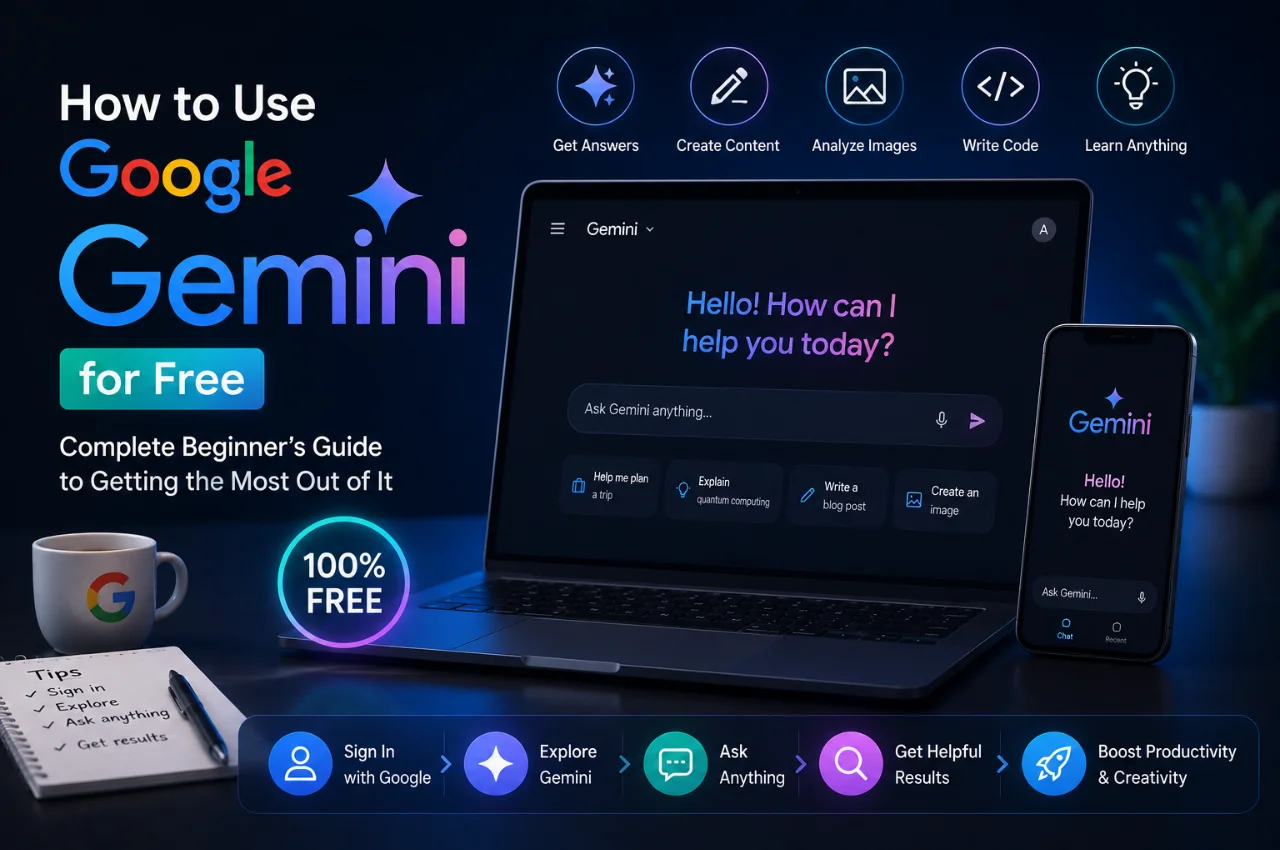
You have heard about Google Gemini. Maybe you have seen it mentioned in news articles. Maybe Google prompted you to try it in your Gmail or on your Android phone. Maybe a colleague mentioned it at work. But you have never actually sat down and properly used it — or you opened it once, were not sure what to do, and closed it.
This guide is written specifically for you. It starts from the very beginning — what Gemini actually is, how to access it completely free, what it can do, and how to get genuinely useful results from it every single day. By the time you finish reading, you will be able to use Google Gemini confidently without spending a single rupee.
What is Google Gemini? — A Simple Explanation
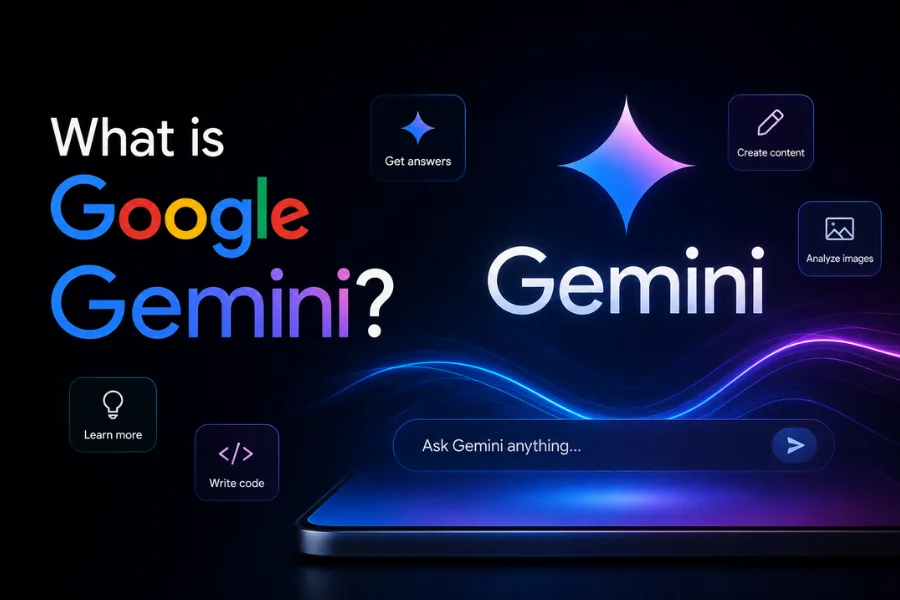
Google Gemini is Google’s AI assistant — a tool you can have a conversation with in plain language to get answers, create content, analyze information, and complete a wide range of tasks. You type a question or a request, and Gemini responds intelligently, like having a very knowledgeable assistant available at all times.
Gemini is built by Google DeepMind, Google’s AI research division, and it is powered by Google’s own large language models — the same underlying AI technology that powers ChatGPT and Claude, but developed independently by Google and deeply integrated into Google’s entire ecosystem of products.
What makes Gemini genuinely different from other AI assistants is its deep integration with Google’s products that you already use every day — Google Search, Gmail, Google Docs, Google Drive, Google Maps, YouTube, and Google Photos. This means Gemini is not just a standalone tool you switch to — it is woven into the tools that are already part of your daily digital life.
Gemini has crossed 750 million monthly active users in 2026, making it one of the most widely used AI tools in the world. If you have a Gmail account — which billions of people do — you already have access to Gemini for free right now.
Is Google Gemini Really Free? What Do You Get Without Paying?
Yes — Google Gemini has a genuinely capable free tier that is suitable for the vast majority of everyday tasks.
The free version in 2026 gives you access to Gemini Flash as your default model — Google’s fast, highly capable AI that handles a very wide range of tasks including answering questions, writing, summarizing, analyzing images, generating images, translating languages, coding assistance, and much more. Free users also get access to Google Search integration, which means Gemini can find and cite current information from the web — giving it a significant advantage over offline AI systems for factual queries.
The free tier also includes basic integration with Gmail and Google Docs, conversation history, file and image upload capability, and the Gemini mobile app for both Android and iPhone.
For most beginners and everyday users — students, professionals, and anyone using AI for personal productivity — the free tier is more than sufficient for daily use.
Google AI Pro at approximately 1,999 rupees per month unlocks higher message limits, deeper integration with all Google Workspace apps, access to more advanced models for complex reasoning, and Deep Research mode for comprehensive multi-source research reports. Google AI Ultra at the highest tier unlocks every capability including video generation and the most powerful models. But these paid tiers are not necessary to start getting genuine value from Gemini.
Where Can You Access Google Gemini for Free?
One of Gemini’s greatest strengths is how many places you can access it — often in places you were already working, without switching to a new app.
The web browser is the most straightforward starting point. Open any browser on any device and go to gemini.google.com. Sign in with your Google account — the same account you use for Gmail — and you can start chatting immediately. The interface is clean and simple with a message box where you type your requests.
The Gemini mobile app is available free for both Android and iPhone. On Android, Gemini is even more deeply integrated — it can be set as your default assistant, replacing Google Assistant, so you can access it by long-pressing the home button or saying the wake phrase. On iPhone, download the Gemini app from the App Store. The mobile app adds Gemini Live — a voice conversation mode where you speak to Gemini and it speaks back.
Google Search itself now incorporates Gemini through AI Overviews. When you search on Google, many queries show an AI-generated summary at the top of results before the regular links. This is Gemini providing a synthesized answer to your question using information from multiple web sources.
Gmail on the web and in the app includes Gemini assistance for users who are signed in. Look for the Gemini icon when composing an email — it offers to help you draft, rewrite, summarize, or respond to messages. The Help me write feature is one of Gemini’s most immediately practical applications for most people.
Google Docs includes a Gemini side panel accessible from the right side of the document. You can ask Gemini to help you draft content, improve writing, generate ideas, or summarize selected text — all without leaving the document you are working on.
Your Android phone may have Gemini built in if it is a recent model. The Gemini app is pre-installed on many Android devices running Android 10 and above. If not, search for it in the Google Play Store.
Setting Up Google Gemini — Step by Step
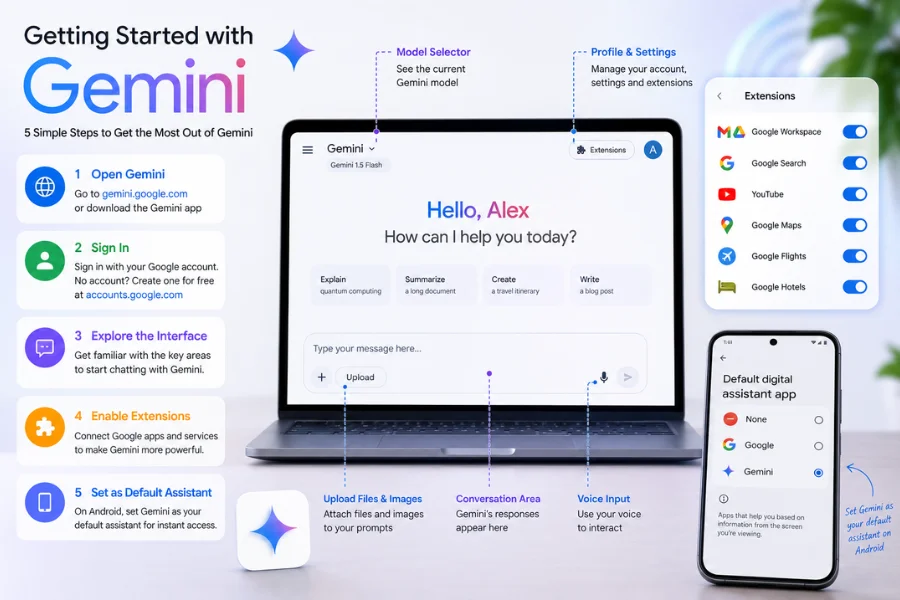
Getting started with Gemini takes approximately three minutes.
Step one — go to gemini.google.com in your browser or download the Gemini app from your device’s app store.
Step two — sign in with your Google account. If you have Gmail, this is your existing Google account. If you do not have one, creating a free Google account takes about two minutes at accounts.google.com.
Step three — once signed in, you will see the Gemini interface. At the top you will see the Gemini logo and the current model being used. In the center is the conversation area where responses appear. At the bottom is the message box where you type your requests. There are also icons for uploading files and images, and for using voice input.
Step four — enable Extensions to connect Gemini to your Google apps and make it significantly more powerful. Click your profile icon in the top right corner and go to Settings. Select Extensions. You will see options to connect Google Workspace, Google Search, YouTube, Google Maps, Google Flights, and Google Hotels. Enable the ones that are relevant to you. Once connected, you can ask Gemini to search your Gmail, summarize documents from your Drive, find information from YouTube, or look up flights and hotels.
Step five — on Android, consider setting Gemini as your default assistant. Go to your phone’s Settings, then Apps or Applications, then Default Apps, then Digital Assistant App. Select Gemini. From this point, long-pressing your home button opens Gemini instantly from anywhere on your phone.
Understanding What Gemini Can Do — The Complete Free Feature List
Knowing what Gemini is capable of helps you recognize when to use it and what to ask for. Here are all the main capabilities available on the free tier.
Answering questions with Google Search integration is one of Gemini’s strongest free features. Unlike AI tools that rely only on their training data, Gemini can search the web in real time and present current, sourced information in response to your questions. Ask about today’s news, current prices, recent events, or any factual question — Gemini retrieves current information and presents a clear answer with clickable source citations you can verify.
Writing and editing assistance covers the full range of written communication. Emails, cover letters, essays, social media captions, product descriptions, reports, stories, and any other form of written content. Give Gemini context and it produces a strong draft. Paste existing text and ask it to improve it, shorten it, adjust the tone, fix errors, or rewrite it for a specific audience. The Help me write feature in Gmail makes drafting email replies particularly fast — Gemini reads the email you are replying to and drafts a response that you can adjust before sending.
Summarization and document analysis lets you paste any long text — an article, a contract, a research paper, meeting notes — and get a concise, accurate summary. You can also ask specific questions about the content rather than just requesting a summary. Uploading a PDF or document directly and asking Gemini to extract key information, identify important dates, or answer questions about the content works effectively on the free tier.
Image understanding and analysis allows you to upload any photo and ask Gemini about it. Identify objects, describe what is happening in an image, extract text from a photo, analyze a chart or diagram, identify a plant or animal, or translate text visible in an image. This is one of the most practically useful features for everyday tasks — photographing a document and asking Gemini to read and summarize it, photographing a product label and asking what the ingredients mean, or photographing a menu in a foreign language and asking for a translation.
Image generation creates original images from text descriptions. Describe what you want to see and Gemini generates an image. This is useful for creating visuals for presentations, social media, and creative projects without needing design software or a professional designer.
Translation between languages works for all major world languages including Hindi, Tamil, Bengali, Telugu, Marathi, Gujarati, and other Indian languages in addition to all major world languages. Paste text in any language and request a translation in whatever language you need.
Coding assistance helps with writing, understanding, and debugging code. Describe what you want your code to do and Gemini writes it. Paste code with a bug and ask what is wrong. Ask it to explain what an existing piece of code does. This is valuable for developers and increasingly useful for non-developers who need simple automation scripts.
Gemini Live on the mobile app enables a flowing voice conversation where you speak your questions and Gemini responds in voice. This is natural and conversational — you can interrupt, redirect, and continue the conversation without rigid turn-taking. It is useful for quick questions while your hands are busy, for language practice, and for situations where typing is inconvenient.
How Gemini is Integrated Into Google Products You Already Use
This is where Gemini delivers its most distinctive and practically useful value — and where it differs most from ChatGPT and other standalone AI tools.
In Gmail, Gemini offers Help me write when you are composing a message. Type a brief description of what you want to say and Gemini drafts a full, professionally written email. You can ask it to make the draft more formal, shorter, friendlier, or rewrite it entirely with different instructions. You can also open the Gemini side panel in Gmail and ask questions about your email history — “Summarize the last five emails from my manager” or “What did we agree on in the email thread about the project deadline?”
In Google Docs, the Gemini side panel lets you ask for help while you work. Highlight a paragraph and ask Gemini to improve it. Ask it to generate an outline for the topic you are writing about. Ask it to add a section on a specific sub-topic. Ask it to check the tone and suggest changes. All of this happens in the side panel without interrupting your document. You can also ask Gemini to find information from the web and insert it into your document with sources.
In Google Drive, Gemini can help you find files using natural language — “Find the spreadsheet I worked on last month about the budget” — and can summarize documents directly from Drive without downloading or opening them.
In Google Slides, Gemini can help generate presentation content, suggest layouts, and create slides from a brief description of your topic. For professionals who frequently create presentations, this can save significant time.
In Google Meet, Gemini can take notes during calls, generate summaries of what was discussed, and create a list of action items from the meeting — all automatically.
In Google Photos, Gemini can search your photo library using natural language descriptions and can help you create albums, shared content, and visual summaries.
How to Write Prompts That Get Great Results
The quality of what you get from Gemini depends almost entirely on how well you phrase your requests. This is called prompting, and a few simple principles make an enormous difference.
Be specific and provide context. The more information you give Gemini about what you need, who it is for, and what the result should look like, the better the response. Compare these two approaches: “Write me an email” versus “Write a professional email to my client explaining that the project will be delayed by one week due to unforeseen technical issues. The client’s name is Mehra Ji. Keep the tone apologetic but reassuring and end with a clear commitment to the new deadline.” The second approach gives Gemini everything it needs to produce something you can actually send.
Specify the format. If you want a numbered list, ask for a numbered list. If you want the response in a table, ask for a table. If you want it in exactly 200 words, say so. If you do not want technical jargon, say “explain this in simple language without technical terms.” Gemini follows formatting instructions very accurately.
Tell Gemini to take on a role. Asking Gemini to respond as a specific type of expert often produces significantly better results. “Act as an experienced financial advisor and explain the best way to start investing with 5,000 rupees per month as a 25-year-old in India” produces a more focused and practically relevant response than a generic investment question.
Ask for clarification if the result is not quite right. Gemini remembers the entire conversation within a session. If the first response is not exactly what you needed, simply reply with instructions — “make it more formal,” “cut the word count in half,” “add more detail about the second point,” “that is not what I meant, let me explain better.” You do not need to start over — just keep refining through follow-up messages.
Use the Double-check feature for factual information. After Gemini gives you a response, you can click the Google icon or the double-check option to have Gemini verify its own claims against current Google Search results. Highlighted statements in green have been confirmed by search results. Statements with no highlight or with a question mark should be independently verified before you use them.
The Most Useful Everyday Uses of Google Gemini — Practical Examples
Here are ten specific, ready-to-use scenarios where Gemini provides immediate, practical value in everyday life.
For email at work: “I received an email from a client saying they are unhappy with the project timeline. Write a professional, empathetic reply that acknowledges their concern, explains the reasons for the delay without making excuses, and outlines the specific steps we are taking to get back on track.”
For research: “Search the web and give me a current, comprehensive summary of the best Android phones available in India under 25,000 rupees in 2026. Include the key specs and who each phone is best suited for.”
For studying: “Explain the Indian Constitution’s Fundamental Rights in simple language that a Class 10 student can understand. Use examples relevant to everyday Indian life.”
For career: “I am applying for a marketing executive position at a digital marketing agency in Mumbai. I have three years of experience in social media marketing. Write a compelling cover letter in a confident, professional tone.”
For health information: “Explain what prediabetes is, what the common warning signs are, and what lifestyle changes doctors typically recommend. Use simple language suitable for someone who has just been told by their doctor that their blood sugar is borderline.”
For travel planning: “Create a detailed 4-day travel itinerary for Rishikesh and Haridwar in Uttarakhand for a group of four adults traveling from Delhi. Include accommodation types, must-visit places, timing recommendations, and practical travel tips for each day.”
For language and writing: “I have written this paragraph for a formal business report. Please improve the language, fix any grammatical errors, and make it sound more professional while keeping all the original information intact.” Then paste your paragraph.
For understanding documents: “I am going to paste a section from my employment contract. Please explain in simple language what each clause means, flag any clauses I should pay particular attention to, and let me know if anything seems unusual.” Then paste the relevant section.
For creative projects: “Generate a professional product description for a handmade silver anklet that I sell online. The anklet features traditional Rajasthani design patterns and is made by local artisans. Write one version for Instagram and one version for a formal product catalogue.”
For Google Photos: With Extensions enabled — “Find photos of my birthday celebration from last year and create a short album summary.”
Gemini vs ChatGPT — What is Actually Different?
Both Gemini and ChatGPT are powerful AI assistants and both are free at their base level. The differences are real but depend significantly on your specific situation.
Gemini’s primary advantage is its deep integration with Google’s ecosystem. If you use Gmail, Google Docs, Google Drive, and other Google Workspace tools regularly, Gemini provides a level of integration and contextual awareness that ChatGPT cannot match without additional setup. Gemini can access your actual emails, your actual documents, and your actual search history to provide personalized, contextually relevant responses. It also has real-time Google Search integration by default on the free tier.
ChatGPT’s primary advantage is its broader and more refined set of standalone capabilities — particularly in advanced reasoning, creative writing, and the variety of features available in the paid tier. ChatGPT has a larger ecosystem of third-party integrations and has been refined through more diverse real-world feedback over a longer period as the most widely used AI tool.
For Indian users who rely heavily on Google’s services — which represents the majority of Indian internet users given Gmail’s dominance and Google’s deep Android integration — Gemini’s ecosystem integration makes it the more natural and frictionless choice for everyday use.
For users who want the absolute best standalone AI capabilities for complex reasoning and advanced creative work, ChatGPT’s paid tier has some advantages.
The most practical recommendation is to use both free tiers, because they complement each other well and using multiple AI tools for different tasks is both common and sensible among people who use AI regularly.
Tips to Get Even More From the Free Version
Use Gemini through Google Search for quick factual questions. The AI Overview that appears on Google search results pages is powered by Gemini and does not count against any message limits — it is entirely free and provides quick synthesized answers for thousands of everyday queries.
Enable all the Extensions immediately after signing up. The Search, Gmail, Drive, Maps, Flights, Hotels, and YouTube extensions are free and significantly expand what Gemini can do. Most new users do not enable these and miss the most distinctive capabilities Gemini offers compared to other AI tools.
Use the mobile app for voice conversations with Gemini Live. The hands-free voice conversation feature is genuinely useful for quick questions while commuting, cooking, or any situation where typing is inconvenient. It is one of the most natural AI experiences currently available.
Use Gemini inside Gmail before switching to a separate AI tool. If you spend significant time on email, the Help me write and email summarization features inside Gmail are often faster and more contextually relevant than opening a separate AI app — because Gemini can see the conversation thread you are responding to.
Experiment with the image upload feature. Many users use Gemini only for text, unaware that uploading photos to ask questions about them is one of the most practically useful free features. Photographing a confusing document, a product you want information about, or a meal you want nutritional information on are all effective uses.
Key Takeaway
Google Gemini is one of the most accessible and practically useful AI tools available to anyone with a Google account in 2026 — which means virtually anyone with a smartphone or computer. The free version is genuinely capable, deeply integrated with Google’s products, and connected to real-time web search information. If you use Gmail, you already have access to it right now.
The single most important thing that separates people who get genuine daily value from Gemini from those who try it once and do not return is learning to write specific, context-rich prompts rather than vague, generic ones. Spend a few days practicing this — and the difference in response quality is immediately obvious.
Open gemini.google.com today. Sign in with your Gmail. Enable the Extensions. And try your first real task — something you actually need to do today. That first genuinely useful result is what makes every AI tool click for new users.
Frequently Asked Questions
Is Google Gemini free to use in India?
Yes — Google Gemini is completely free for Indian users. Access it at gemini.google.com or through the Gemini app on Android and iPhone using your existing Google or Gmail account. No payment or subscription is required for the free tier.
What is the difference between Gemini Free and Google AI Pro?
The free tier gives you access to Gemini Flash with Google Search integration, basic Workspace features in Gmail and Docs, image understanding, image generation, and the Gemini mobile app. Google AI Pro at approximately 1,999 rupees per month adds higher usage limits, access to more advanced reasoning models, full integration across all Google Workspace apps, Deep Research mode, and larger context windows for analyzing very long documents.
Is Gemini better than ChatGPT?
Neither is strictly better — they excel in different areas. Gemini’s advantage is deep integration with Google’s ecosystem — Gmail, Drive, Docs, Maps, and real-time Search. ChatGPT has a more extensive standalone feature set and broader third-party integrations. For users heavily reliant on Google products — which describes most Indian internet users — Gemini’s integration advantage is meaningful. The best approach is to use both free tiers.
Can Gemini access my Gmail and Google Drive?
Yes, but only with your explicit permission. You need to enable the Workspace Extension in Gemini’s Settings. Once enabled, you can ask Gemini to search your emails, summarize Drive documents, and access your Calendar. You can disable this access at any time from the same settings. Google states that your personal data accessed through Gemini is not used to train its AI models.
Does Gemini work on Android phones in India?
Yes — Gemini is deeply integrated into Android and is pre-installed on many recent Android devices in India. You can also download it from the Google Play Store on any Android phone running Android 10 or above. On newer Pixel phones, Gemini can be set as the default assistant, making it accessible with a single button press or voice command.
Is it safe to use Google Gemini for personal information?
For general tasks, Gemini is safe to use with the same caution you would apply to any Google product. Avoid sharing highly sensitive personal information such as passwords, financial account numbers, or confidential business data that should not be stored on any external server. For typical use cases — writing, research, summarization, and question answering — Gemini’s privacy practices are consistent with Google’s standard privacy policies.
Final Thoughts
Google Gemini is not just another AI chatbot — it is an AI assistant that lives inside the digital tools billions of people already use every day. The combination of Google Search integration, Workspace connectivity, multimodal capabilities, and the convenience of the mobile app makes it one of the most practically useful free AI tools available in 2026.
The learning curve is minimal. If you can use Gmail and Google Search — and you already do — you can use Gemini effectively within minutes of signing up. The key is simply to start using it for real tasks rather than test questions, and to practice writing specific, context-rich prompts rather than vague one-liners.
Open it today. Give it something real to do. The value becomes obvious very quickly.