Let me guess. Your phone was perfectly fine when you first got it. Apps opened quickly, scrolling was smooth, everything just worked. But somewhere along the way — maybe six months in, maybe a year — things started feeling sluggish. The keyboard lags when you type. Instagram takes three seconds to open. Switching between apps feels like watching paint dry.
Here is what most people do at this point: they buy a new phone. But here is what most people do not realize: in the vast majority of cases, you do not need a new phone. You need to fix the one you have.
Twelve fixes below. Some take thirty seconds. Some take five minutes. Start from the top and work your way down, and I can almost guarantee your phone will feel significantly better before you reach Fix 12.
Why Android Phones Slow Down in the First Place
Before jumping into the fixes, it helps to understand what is actually happening inside your phone.
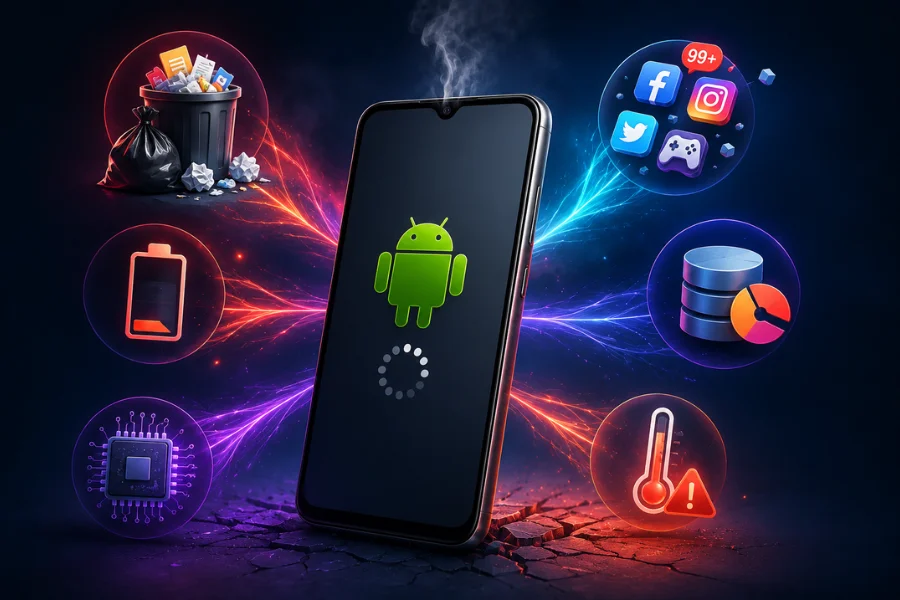
Over months of use, apps quietly accumulate temporary files they no longer need. Background processes pile up. Your internal storage gets crowded, and Android — which needs a certain amount of free space just to function efficiently — starts struggling. Software updates add new features that demand more from older hardware. And sometimes a single misbehaving app quietly drains your processor and RAM twenty-four hours a day without you ever knowing.
None of this is inevitable, and none of it requires advanced technical knowledge to reverse. Let us get into it.
Fix 1 — Restart Your Phone. Seriously.
This is the fix that sounds too simple to matter, and it matters more than almost anything else on this list.
Most people never restart their phones. They charge them every night, they use them all day, and the phone just keeps running — for weeks, sometimes months, without a single reboot. Meanwhile, background processes accumulate, RAM fills up with apps you stopped using hours ago, and the system gradually becomes more and more bogged down.
A restart clears everything. RAM gets wiped clean. Stuck processes get terminated. Android starts fresh. It takes about thirty seconds and the improvement is often immediate and noticeable.
Make it a habit: restart your phone once a week. On Samsung phones, you can actually schedule this automatically. Go to Settings, then Device Care, then Auto Optimization, then Auto Restart. Set it to restart at a time you are not using your phone — say, 4 AM on Sunday morning. Problem solved, habit automated.
Fix 2 — Free Up Storage Space
This one surprises people, but it is one of the biggest causes of Android slowdown. When your internal storage gets too full — say, above 80 to 85 percent capacity — Android’s performance degrades noticeably. The operating system needs free space to write temporary files, manage virtual memory, and perform basic operations. When that space is not there, it slows down.
Go to Settings, then Storage. Look at how much space is used versus available. If you are above 80 percent, you need to free up some room.
The fastest way to do it is photos and videos. Most people’s camera rolls contain gigabytes of duplicates, screenshots they no longer need, and videos they watched once. Back everything up to Google Photos, then delete what is already backed up. You can recover hundreds of gigabytes this way without losing a single photo.
Next, check downloaded videos. Offline Netflix, YouTube, and Hotstar downloads are enormous files — and once you have watched them, they are just sitting there consuming space. Delete them.
Finally, look through your apps. Go to Settings, then Apps, then sort by size. The apps at the top of that list are often the ones you barely use. Delete what you do not need.
Keep at least 15 to 20 percent of your storage free at all times. Your phone will thank you.
Fix 3 — Clear App Cache
Apps store temporary data called cache — files they download and save locally so they do not have to download them again from scratch every time you open the app. In theory, this speeds things up. In practice, cache accumulates endlessly and can eventually occupy several gigabytes of space while actually slowing the app down rather than helping it.
Clearing the cache for your heaviest apps makes a real difference. Go to Settings, then Apps. Tap on Facebook, YouTube, Instagram, WhatsApp, Google Chrome, or whatever apps you use most. Tap Storage, then Clear Cache. This removes all the temporary files without deleting any of your personal data — your chats, your photos, your account stays completely intact.
Do this for your top five or six most-used apps and you will often see immediate improvement in how quickly they open.
One important note: there is a difference between Clear Cache and Clear Data. Clear Cache is safe — it only removes temporary files. Clear Data wipes everything including your login information, app settings, and locally stored data. Only tap Clear Data if you are deliberately trying to reset an app from scratch.
Fix 4 — Reduce Android’s Animations
This is the fix that feels like magic the first time you do it, because the effect is immediate and dramatic.
Android plays animations for everything — opening apps, switching between screens, pressing the back button. These animations make the interface look polished. They also make your phone feel slower than it actually is, because you are literally watching the animation play out before you can do anything.
Reducing the animation speed does not make your processor faster. But it removes the visual delay that makes your phone feel slow. After doing this, your phone will feel genuinely snappier even if the underlying hardware is identical.
Here is how to do it. First, enable Developer Options. Go to Settings, then About Phone, then scroll down to Build Number. Tap it seven times in a row. Your phone will tell you when Developer Options have been unlocked. Now go back to Settings, find Developer Options, scroll down, and find three settings: Window Animation Scale, Transition Animation Scale, and Animator Duration Scale. They are all likely set to 1x. Change all three to 0.5x.
That is it. Open an app. Switch between apps. Feel the difference.
Fix 5 — Identify and Deal With Battery-Draining Background Apps
Some apps are genuinely well-behaved. Others run constantly in the background, refreshing content, checking for notifications, syncing data, and quietly consuming your processor and battery around the clock.
Android has a built-in tool to catch them. Go to Settings, then Battery. Look for Battery Usage or a similar option — this varies slightly by brand. You will see a list of apps sorted by how much battery they have consumed. If a social media app, a news aggregator, or anything you barely use is near the top — that app is running far more than it should be.
For apps that clearly use too much background power, tap on the app and look for Background Restriction or Battery Optimization. Set them to Restricted or Optimized to limit what they can do when you are not actively using them.
On Samsung phones, Device Care has an automatic sleep feature that detects unused apps and puts them to sleep automatically. On Xiaomi and Redmi phones, look for Battery Saver settings that let you manually restrict specific apps. On OnePlus, the Battery section in Settings gives you granular control over which apps can run freely in the background.
Fix 6 — Uninstall Apps You Do Not Actually Use
Go through your app drawer honestly. You probably have apps you downloaded once, used twice, and have not touched since. Each of those apps may be running background processes, occupying storage space, and occasionally consuming resources you could be using for things you actually care about.
Delete what you do not use. Not disable — delete. Go to Settings, then Apps, and go through the list. For anything you have not opened in the past month, ask whether you genuinely need it on your phone.
For apps you want to keep but use rarely, consider using their mobile website through Chrome instead of a dedicated app. The Instagram website, the Facebook website, the Twitter website — all of them work through a browser and consume significantly fewer resources than their full dedicated apps.
Fix 7 — Update Your Operating System and Apps
This is counterintuitive because people assume updates slow phones down. Sometimes they do, very slightly. But more often, running outdated software is far worse for performance than updating it.
App developers release updates specifically to fix performance bugs and optimize their code. An app that is three versions behind its current release may be significantly less efficient than the updated version. More importantly, operating system updates include bug fixes that sometimes resolve specific performance problems affecting large numbers of devices.
Go to the Play Store, tap your profile icon, then Manage Apps and Device. Tap Update All. Then go to Settings, then System, then Software Update. If an update is available, install it.
Fix 8 — Switch to Lighter Versions of Heavy Apps
Several of the most popular apps — particularly Facebook and Messenger — have well-deserved reputations for being resource-heavy, permission-hungry, and slow on any hardware they are installed on. Facebook Lite exists specifically because the full Facebook app is considered too heavy even by Facebook’s own standards.
If your phone struggles and you use Facebook, switch to Facebook Lite. It is smaller, faster, and uses dramatically less RAM and battery. For messaging, consider using WhatsApp’s web version through Chrome for heavy conversations, or look for lighter alternatives to apps that feel consistently slow on your device.
Fix 9 — Remove Live Wallpapers and Excessive Home Screen Widgets
Live wallpapers look great. They also run continuously in the background, consuming processing power and battery every second your screen is on. If your phone is struggling, the animated fish swimming across your home screen is not helping.
Switch to a static wallpaper. It takes ten seconds and removes a continuous background process.
Similarly, every widget on your home screen refreshes on a schedule — the weather widget checks for updates, the news widget fetches headlines, the calendar widget syncs events. Each of these is a tiny background process. A home screen loaded with widgets is a home screen with dozens of apps running simultaneously.
Remove widgets you do not look at regularly. Keep the ones you genuinely use. Your phone’s CPU will appreciate the reduced workload.
Fix 10 — Use Google Files to Deep Clean Your Storage
Files by Google — available free on the Play Store — does a better job of finding junk storage than most manufacturers’ built-in storage cleaners. Open it and go to the Clean tab. It identifies duplicate files, low-quality screenshots, large files you may have forgotten about, and backed-up photos that are safe to delete from local storage.
Run it once and it typically finds several gigabytes of genuinely useless files that your phone’s built-in Storage screen never showed you. Delete everything it flags as safe to remove.
Fix 11 — Check for Overheating Issues
A phone that runs hot is a phone that runs slow — this is not a coincidence. Android throttles the processor intentionally when the device reaches high temperatures, reducing performance to prevent hardware damage. If your phone consistently feels warm to the touch and also feels slow, overheating may be the root cause rather than a symptom.
Common causes of chronic overheating include charging while using the phone intensively, a damaged or degraded battery, poor ventilation from a thick case, or a background app putting constant load on the processor. Check your battery health in Settings and look for the unusual battery drain described in Fix 5. If a specific app is consistently responsible for thermal issues, restrict or remove it.
Fix 12 — Factory Reset as a Last Resort
If you have worked through all eleven fixes above and your phone still performs poorly, a factory reset is your nuclear option. It wipes everything and restores the phone to its original out-of-the-box state, eliminating accumulated software problems, corrupted files, and misconfigurations that no individual fix can address.
Before doing this, back up everything. Go to Settings, then System, then Backup, and run a complete Google backup. Make sure Google Photos has backed up all your photos. Export your WhatsApp chats. Write down the apps you actually use so you can reinstall only what you need.
Then go to Settings, then General Management, then Reset, then Factory Data Reset. Confirm and let it run.
When you set the phone back up, be intentional about what you reinstall. The fresh start only stays fresh if you do not immediately pile the same junk back onto it. Reinstall only what you genuinely use, keep your storage under 80 percent, and maintain the habits from this guide — and your phone will stay fast considerably longer than it did before.
Maintaining Speed Long-Term — A Simple Weekly Routine
The fixes above will make your phone faster today. These habits will keep it fast.
Once a week, restart your phone. Once a month, clear the cache on your heaviest apps and check your storage usage. Every three months, do a proper audit of your installed apps and delete what you no longer use. Keep your storage at no more than 80 percent full as a standing rule. And keep both your apps and your operating system updated.
Five minutes of maintenance a month is genuinely all it takes.
Frequently Asked Questions
Will clearing cache delete my photos or messages?
No. Clearing cache only removes temporary files that apps created to load faster. Your photos, messages, login details, app settings, and personal data are completely untouched. The only thing that disappears is the temporary data the app will simply rebuild the next time you use it.
Is it safe to enable Developer Options?
Yes. Developer Options is a built-in Android feature designed for developers but completely safe for anyone to use. Reducing animation scales — which is all this guide suggests using it for — carries zero risk. If you want to disable Developer Options afterward, you can do so from Settings, then Developer Options, then toggle it off at the top.
How much free storage should I keep on my Android phone?
Keep at least 15 to 20 percent of your total storage free at all times. On a 128GB phone, that means keeping at least 20 to 25GB available. Drop below this threshold and Android starts struggling — not dramatically at first, but noticeably over time.
Should I use RAM booster or cleaner apps?
No. Third-party RAM booster apps are one of the most persistent myths in Android optimization, and they do the opposite of what they claim. Android manages RAM efficiently on its own — apps that are sitting in RAM but not actively running are actually using almost no processing power, and having them available means they reopen faster. RAM booster apps forcibly close these apps, which causes your phone to use more battery and more CPU reopening them every time you switch back to them. Avoid them entirely.
My phone is four years old and still slow after all these fixes — what now?
Four-year-old budget and mid-range Android phones genuinely do reach a hardware ceiling. If you have done everything above and your phone is still painful to use, the processor and RAM simply may not be sufficient for the way Android and apps have evolved. At this point, the honest answer is that an upgrade is the practical solution. Look for a mid-range phone with at least 8GB RAM and a Snapdragon 6 or 7 series processor — you do not need to spend flagship money to get a fast, smooth experience.
Final Thoughts
A slow phone is genuinely frustrating — especially when it used to be fast and you cannot figure out what changed. The answer is almost always accumulated software clutter, full storage, or background apps that have quietly taken over.
Work through these twelve fixes in order. The first four alone — restart, free up storage, clear cache, and reduce animations — solve the problem for most people. If they do not, keep going down the list. A factory reset at the end handles whatever the earlier fixes could not.
You know your phone better than any guide does. If something here does not apply to your situation, skip it. If a fix creates an obvious improvement, stick with it. The goal is a phone that actually works — not a perfect checklist.