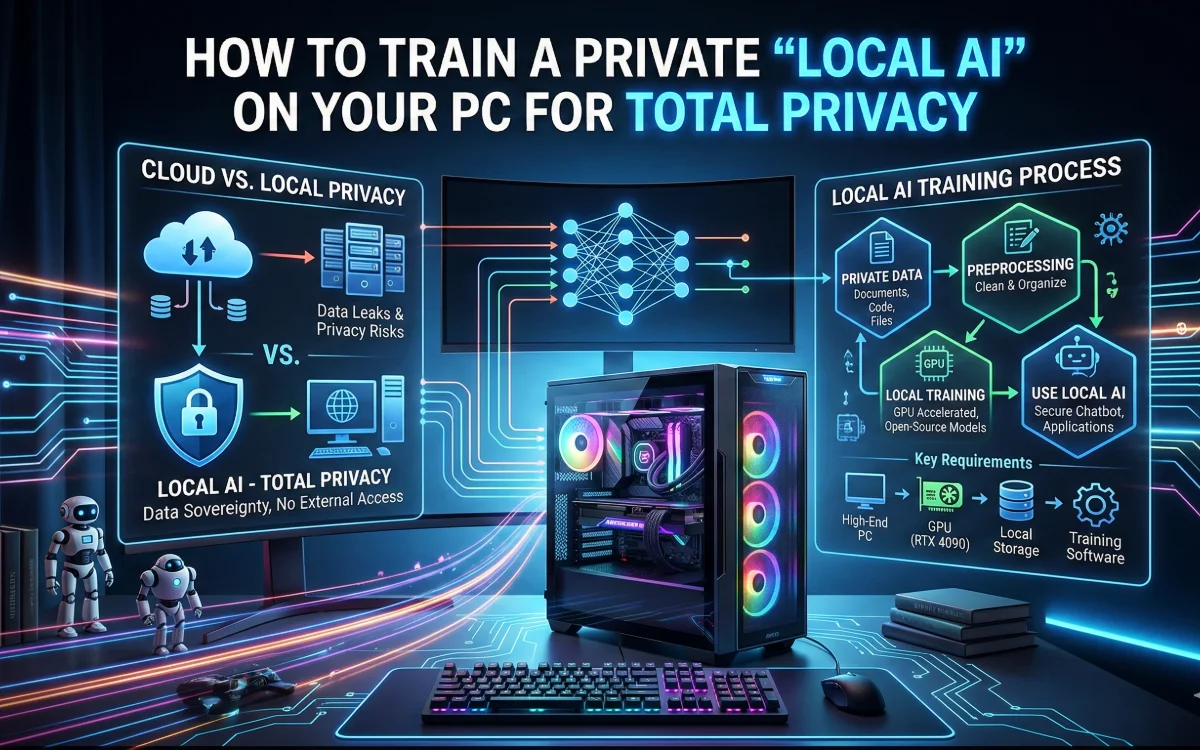
Every time you use cloud-based AI tools, your data usually travels through external servers. That’s convenient — but not always private.
In 2026, a growing number of developers, students, journalists, and remote professionals are moving toward Local AI, where artificial intelligence runs entirely on their personal computer.
From what I’ve observed while testing offline AI setups, the biggest advantage isn’t speed or cost — it’s complete data ownership. Your files never leave your system.
If privacy matters to you, learning how to run and train a private AI locally is becoming an essential digital skill.
What Is a Local AI?
A Local AI is an AI model that runs directly on your PC instead of the internet.
That means:
- No cloud uploads
- No external tracking
- Offline functionality
- Full control over data
You can use it for:
- Writing assistance
- Coding help
- Document analysis
- Research summaries
- Personal knowledge management
Think of it as your personal ChatGPT — but fully private.
Why People Are Switching to Local AI in 2026
The shift toward local AI is driven by three major concerns:
1. Privacy Risks
Uploading sensitive files like:
- business documents
- legal drafts
- research notes
- personal data
…to cloud AI platforms creates dependency and potential exposure.
Local AI removes that risk entirely.
2. Rising Subscription Costs
Many professionals now pay monthly AI subscriptions.
Running AI locally means:
- One-time setup
- Unlimited usage
- No usage caps
3. Offline Productivity
In my experience, local AI becomes incredibly useful during:
- travel
- poor internet connectivity
- secure workplaces
- restricted networks
Your AI works anytime — even without Wi-Fi.
Hardware Requirements (Realistic Setup)
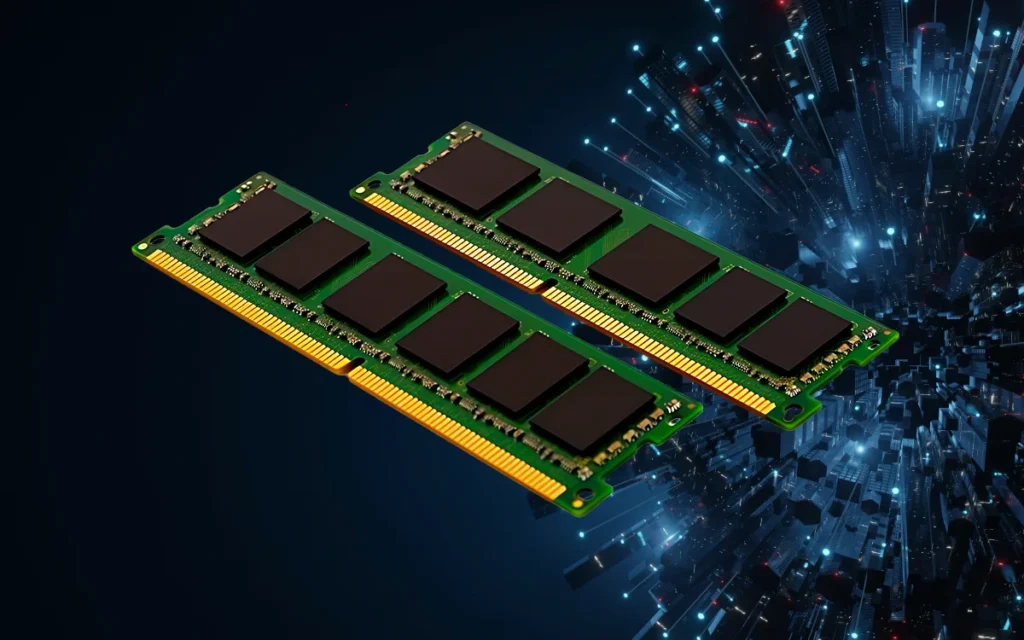
You don’t need a supercomputer, but specs matter.
Minimum Setup
- 16GB RAM
- SSD storage
- Modern CPU
Recommended Setup
- 32GB RAM
- NVIDIA GPU (8GB+ VRAM)
- Fast NVMe SSD
GPU acceleration dramatically improves response speed.
Popular Local AI Tools Compared
| Tool | Best For | Difficulty Level | Offline Support | Ideal Users |
|---|---|---|---|---|
| Ollama | Easy local AI setup | Beginner | Full | Students & creators |
| LM Studio | GUI-based models | Beginner | Full | Non-technical users |
| Text Generation WebUI | Custom training | Advanced | Full | Developers |
| PrivateGPT | Document analysis | Medium | Full | Researchers |
From testing multiple setups, beginners usually succeed fastest using graphical tools instead of command-heavy environments.
Step-by-Step: Train Your Private Local AI
Let’s walk through the practical process.
Step 1: Install a Local AI Runtime
Start with beginner-friendly software like Ollama or LM Studio.
These tools:
- Download AI models
- Run them locally
- Provide chat interfaces
Installation typically takes under 10 minutes.
Step 2: Download an Open AI Model
Popular local models include:
- Llama-based models
- Mistral models
- Phi models
Choose based on your hardware:
- 7B models → normal PCs
- 13B models → stronger systems
- Larger models → GPU required
Tip from real testing:
Smaller optimized models often feel faster and more practical than massive ones.
Step 3: Run Your First Local AI
After installation:
- Launch software
- Select model
- Open chat interface
- Start prompting
At this stage, you already have a private AI assistant.
But training makes it powerful.
Step 4: Train AI on Your Personal Data

This is where Local AI becomes transformative.
Instead of retraining the entire model (which requires huge hardware), you use:
Retrieval-Augmented Generation (RAG)
This method allows AI to learn from your files.
You can upload:
- PDFs
- Notes
- Articles
- Code repositories
- Business documents
The AI searches your files before answering.
Testing this setup revealed extremely accurate responses for personal workflows.
Real-World Example: Blogger Knowledge AI
A content creator trained local AI using:
- past blog articles
- SEO guides
- keyword research documents
- writing templates
Result:
The AI could:
- match writing tone
- suggest article structures
- reuse internal knowledge
- maintain brand consistency
All without internet access.
Real-World Example: Law Student Assistant
A law student created a private AI trained on:
- legal textbooks
- case law PDFs
- personal notes
The AI now summarizes judgments instantly and explains concepts based only on trusted material.
No confidential academic data leaves the PC.
Local Tricks & Pro Tips (Most Guides Don’t Tell You)
1. Use Quantized Models
Quantized models reduce size without major quality loss.
Result:
- Faster performance
- Lower RAM usage
- Laptop compatibility
This single trick can double performance.
2. Store Knowledge in Organized Folders
AI performs better when files are grouped:
/Research
/Notes
/Projects
/Clients
Cleaner structure = better answers.
3. Disable Internet Access (True Privacy Mode)
For maximum privacy:
- Block app internet permissions
- Run firewall restriction
- Use offline-only mode
Now your AI literally cannot send data outside.
4. GPU Memory Optimization
If responses lag:
- Close Chrome tabs
- Disable background apps
- Reduce model size
Local AI performance depends heavily on free memory.
5. Create Specialized AIs
Instead of one large assistant, create multiple:
- Writing AI
- Coding AI
- Research AI
- Study AI
Smaller focused models perform better.
Pros and Cons of Local AI
Pros
- Complete privacy
- No subscription fees
- Offline access
- Custom knowledge training
- Faster long-term workflow
Cons
- Initial setup effort
- Hardware limitations
- Large storage requirements
- Updates require manual management
From what I’ve observed, the setup learning curve lasts about 1–2 days, but benefits continue for years.
Common Mistakes Beginners Make
Avoid these:
- Installing overly large models first
- Ignoring RAM limitations
- Training with messy documents
- Expecting cloud-level reasoning instantly
Local AI improves gradually with optimization.
Who Should Use Local AI?
Ideal users include:
- Journalists handling sensitive data
- Students managing research
- Developers
- Bloggers and creators
- Small business owners
If your work involves private documents, local AI is incredibly valuable.
The Future of Personal AI
The industry trend is moving toward personal ownership of intelligence.
Experts predict that within a few years:
- Every PC may ship with built-in local AI
- Operating systems will integrate private assistants
- Cloud AI becomes optional, not mandatory
2026 may be remembered as the year AI moved from servers back to personal computers.
FAQ – People Also Ask
1. Is local AI completely private?
Yes, if internet access is disabled and models run locally, your data never leaves your system.
2. Can I run local AI without a GPU?
Yes, but responses will be slower. CPU-only setups still work for smaller models.
3. How much storage does local AI need?
Most models require 4GB–20GB depending on size.
4. Is training local AI difficult?
Modern tools simplify the process. Beginners can set up basic systems within hours.
5. Is local AI better than cloud AI?
For privacy and customization — yes.
For raw power — cloud AI still leads.
Final Thoughts
After testing both cloud and local systems extensively, one thing is clear:
Local AI changes your relationship with technology.
Instead of borrowing intelligence from the internet, you own it.
Your files stay private.
Your workflows become personalized.
Your AI works entirely for you.
And in an era where data is currency, that level of control is becoming priceless.